The quiz player
The player is the learner-facing surface. It appears wherever a quiz is placed: as a step inside a course, or anywhere the shortcode is used.
Placing a player
Inside a course, add a quiz step and the player renders in the course viewer. See adding a quiz to a course.
Outside a course, use the shortcode on any page, in any builder that renders shortcodes:
[tangible_quiz id="123"]
The id is the quiz's id. There is no page created for you: hosts place the player wherever they want it, and own the surrounding page and its audience.
Answering
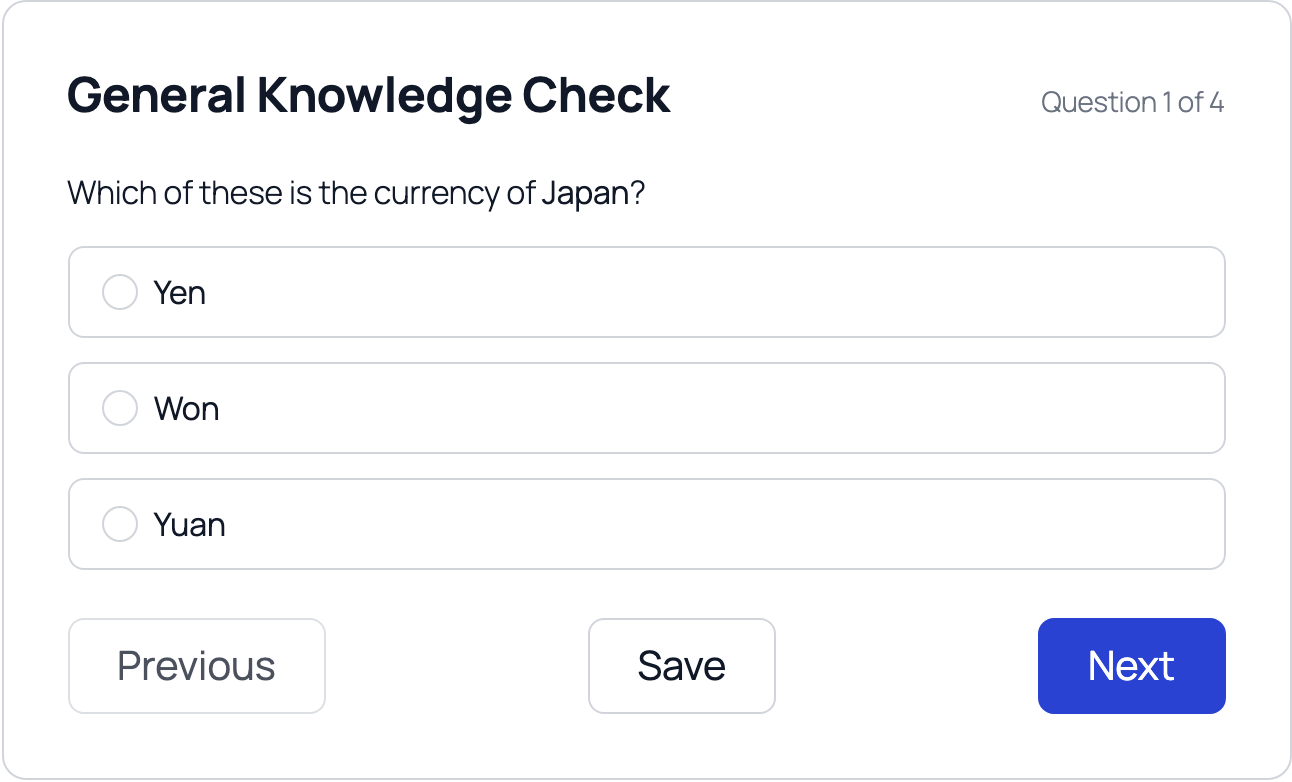
The card shows the quiz title, a progress indicator, the question, and its answer options. Beneath it sit Previous, Save, and Next.
What appears here is shaped by the quiz's Appearance settings and its parts' delivery rules: whether there is a Back button, whether a progress counter or question navigator is shown, how many questions are on a page, and whether the part is answered item-by-item or submitted all at once.
Answers autosave as the learner works, so a closed browser tab does not lose progress. Reopening the quiz shows the autosaved answers rather than starting visually blank.
What counts as an attempt
Reading is free. Opening a quiz does not create an attempt and does not consume one from the learner's allowance. The player works out what to show without materialising anything.
An attempt becomes real on the first save. It counts from the first autosave or explicit save, or at submit, whichever comes first. A learner who opens a quiz, looks at question one, and navigates away has used nothing.
That matters wherever attempts are limited, by Restrict quiz retakes on the quiz or Maximum attempts on a part or a question. Someone who merely looked has not burned a retake.
The states a learner can land in
| State | What the learner sees |
|---|---|
| Start | An unstarted quiz, ready to play. |
| Quiz | The answering view: answer, autosave or save, submit. |
| Review | A read-only result of the most recent closed attempt, with a retry route. |
| Closed | Completed, with review disabled. |
| Blocked | No attempts remaining. |
Whether an intro screen with a Start button precedes the quiz is set by Show an intro screen before the quiz under Appearance.
Guests and logged-in users
A logged-in user gets a real attempt session: answers are saved, progress is tracked, and results are recorded.
A guest gets a read-only display of the published quiz. They can read the questions but nothing is saved and no attempt exists. If a quiz should not be readable by the public at all, do not place it on a public page: the player's audience is the host page's audience.
Results
When an attempt is submitted and scored, the player switches to the result view: a status banner, a summary card, and a per-question breakdown.
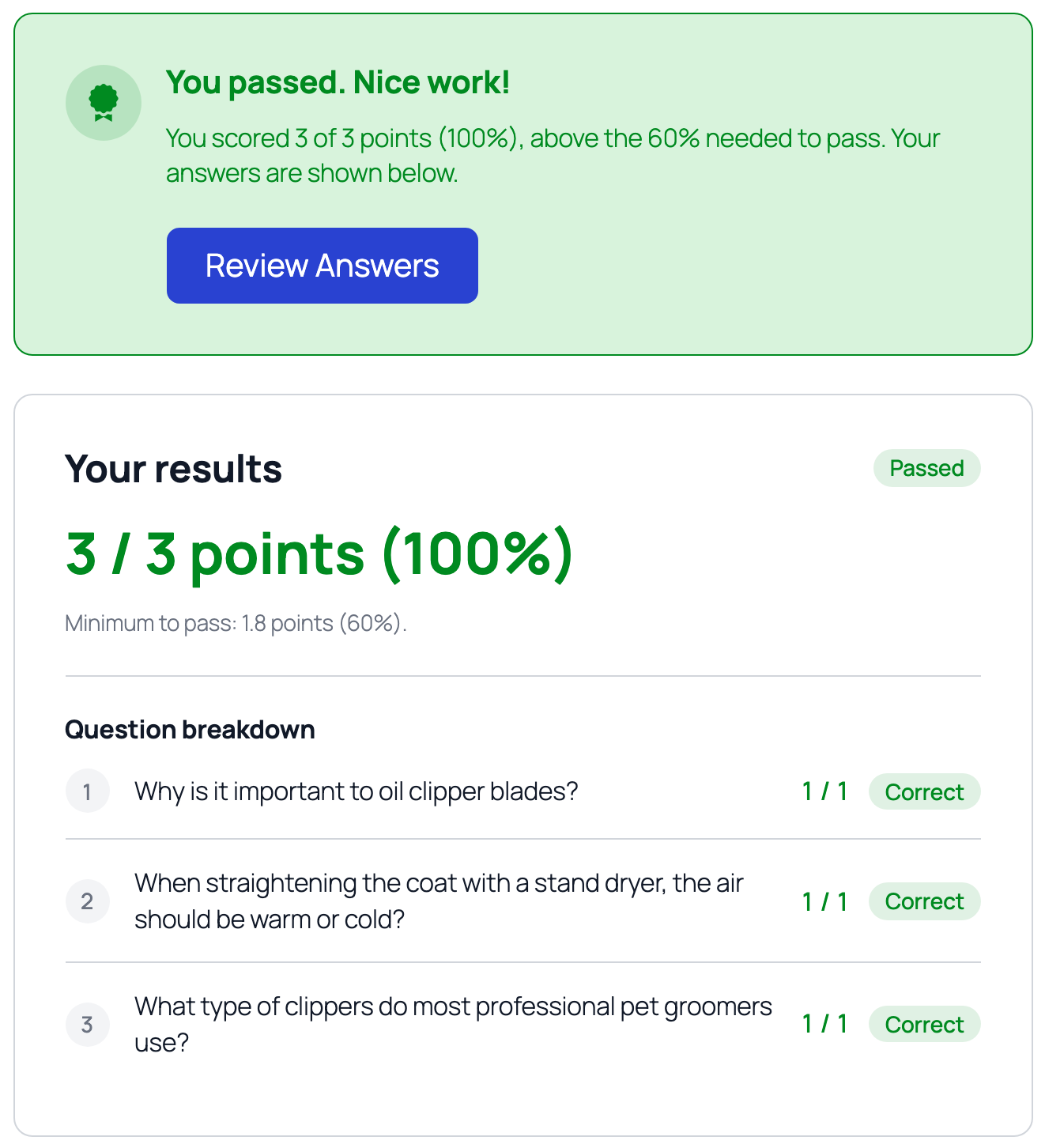
The banner states the outcome and the score, and offers Review Answers on every outcome: passed, failed, or still being graded. The summary card repeats the score as points and a percentage with a pass or fail badge, and Question breakdown lists every question with its points and whether it was correct.
A failing attempt reads the same way, with Retake Quiz joining the banner:
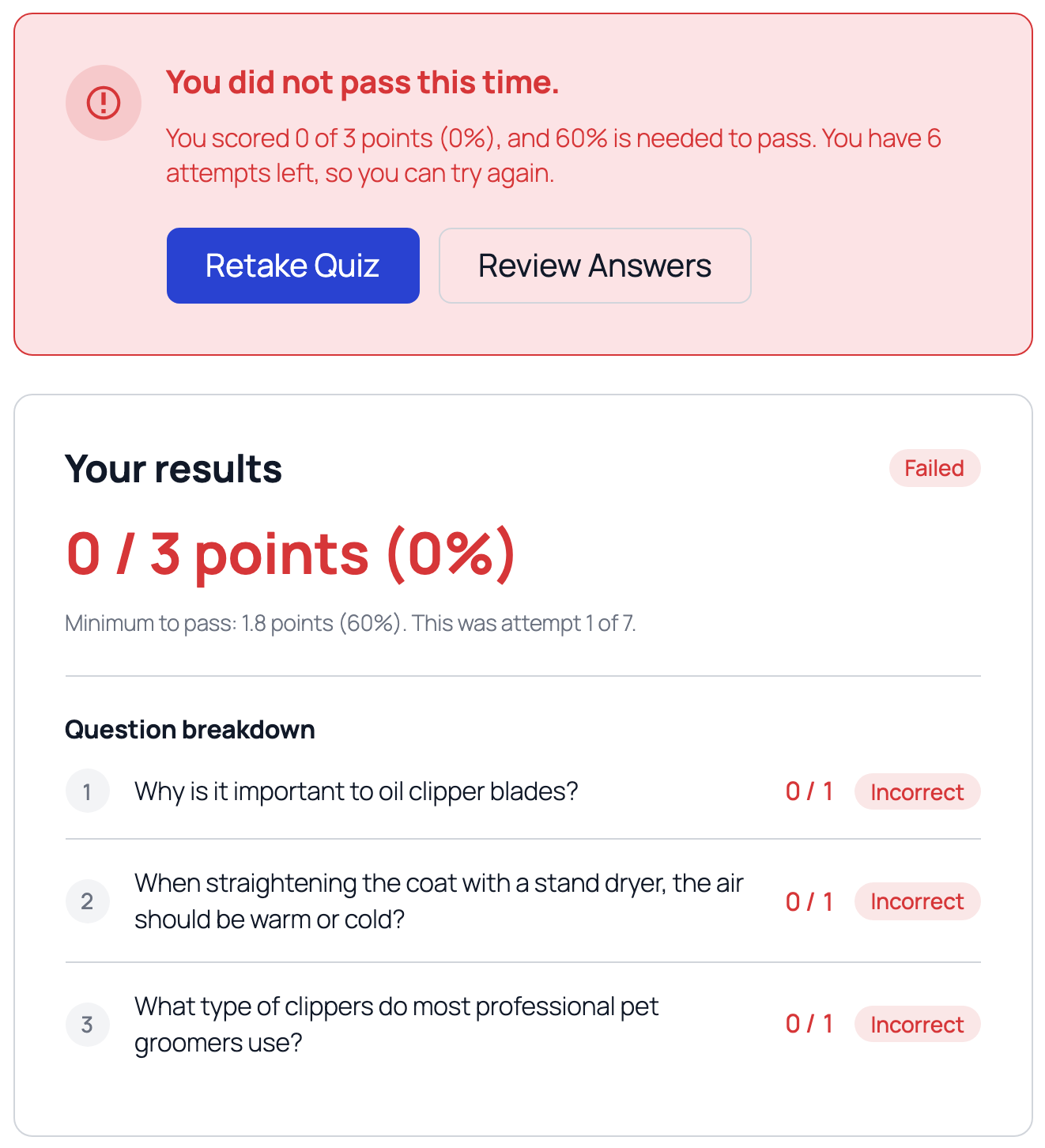
Retake Quiz appears only when the learner has attempts left. Once the allowance is exhausted they land in the blocked state instead. A grader can hand back another try: see granting another attempt.
A quiz can skip this screen entirely: with Show the results summary after submission off in its Results settings, submitting opens the answer review directly, and the retake offer moves to the review's banner.
A quiz containing extended-text or upload questions cannot be scored at submission. The attempt closes, but pass or fail stays undecided until a human grades it, so the learner sees a submitted state rather than a result. See grading.
Reviewing answers
Review Answers opens a read-only walk through the closed attempt. The status banner stays on top and every question stacks below it, always on one page whatever layout the quiz was taken in, each rendered with the learner's saved answer and a verdict pill (Correct, Incorrect, or Awaiting scoring) beside its points.
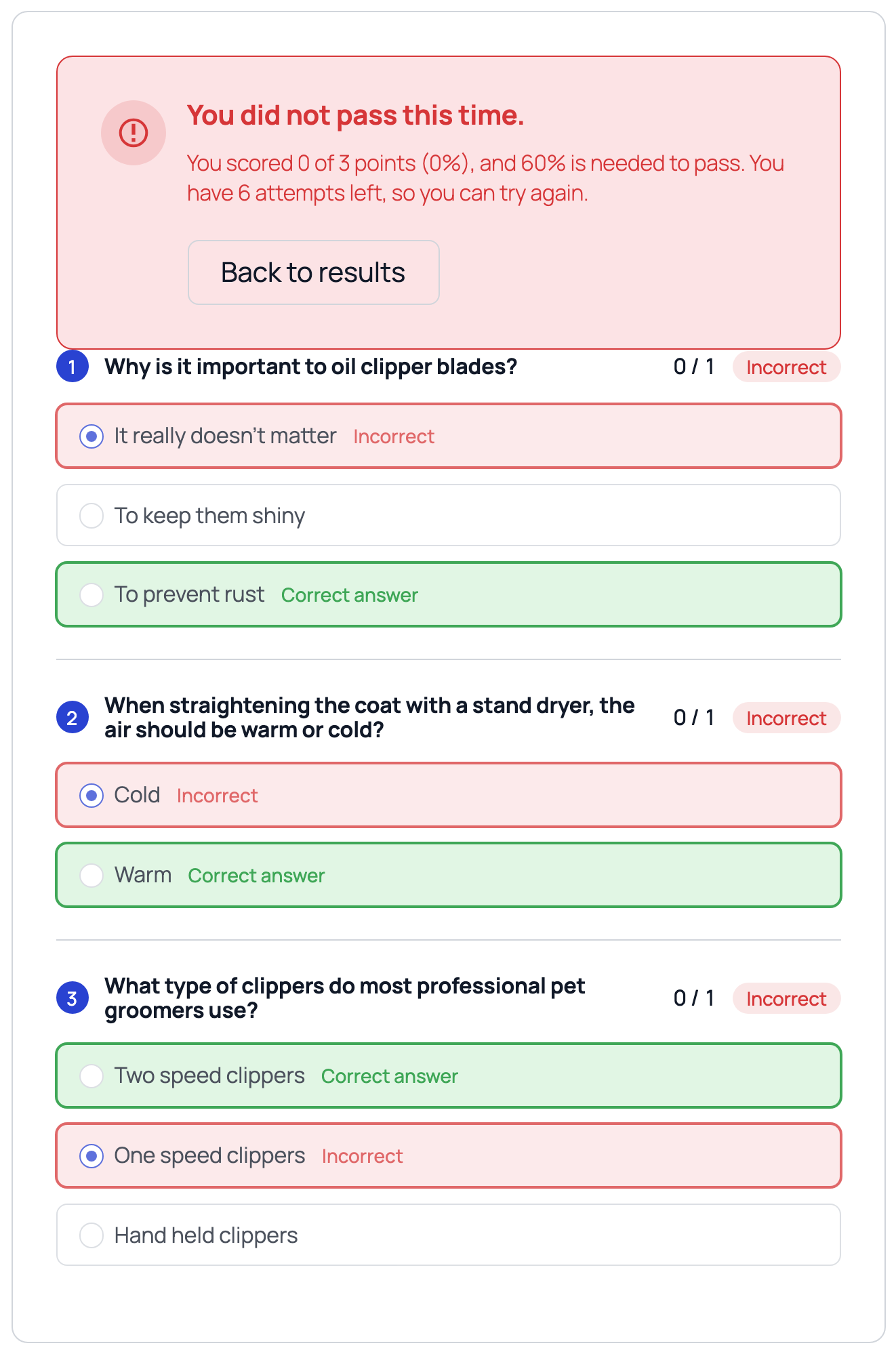
Where the quiz reveals its answer key, every correct option is tinted green and tagged Correct answer, picked or not, and a wrong pick is tinted red. With Show correct answers in the answer review switched off on the quiz, the learner's own answers keep their right or wrong marking but the key is withheld.
Two more things surface here and nowhere else:
- Grader feedback. On a human-graded question, the grader's note appears beneath the question in a verdict-themed banner, headed with the verdict and score, with the note as its body.
- Answers still being marked show a notice in that slot: This answer is waiting for a scorer. You'll see its result once it has been graded.
When a quiz is republished
Attempt counting is per published revision: a new published revision is a new quiz to pass. If the quiz has been republished since the learner's attempt, the result banner says so and offers Retake Quiz even on a passed result, with the attempt allowance counted afresh against the new revision. An attempt already in progress finishes on the content it started with.
When a grader returns questions
A grader can unlock specific questions for resubmission. The attempt reopens for the learner with a notice explaining itself: unlocked questions are editable again, and the rest render read-only with their submitted answers, marked as locked while under review. Resubmitting sends only the returned questions back to the grader. The quiz's time limit does not apply to a resubmission, since the grader invited it.