Quiz settings
The Settings tab in the quiz editor holds everything about how one quiz scores, paces, and presents itself. A Quick Navigation sidebar lists the seven sections and has a search box; Save Settings sits beneath it.
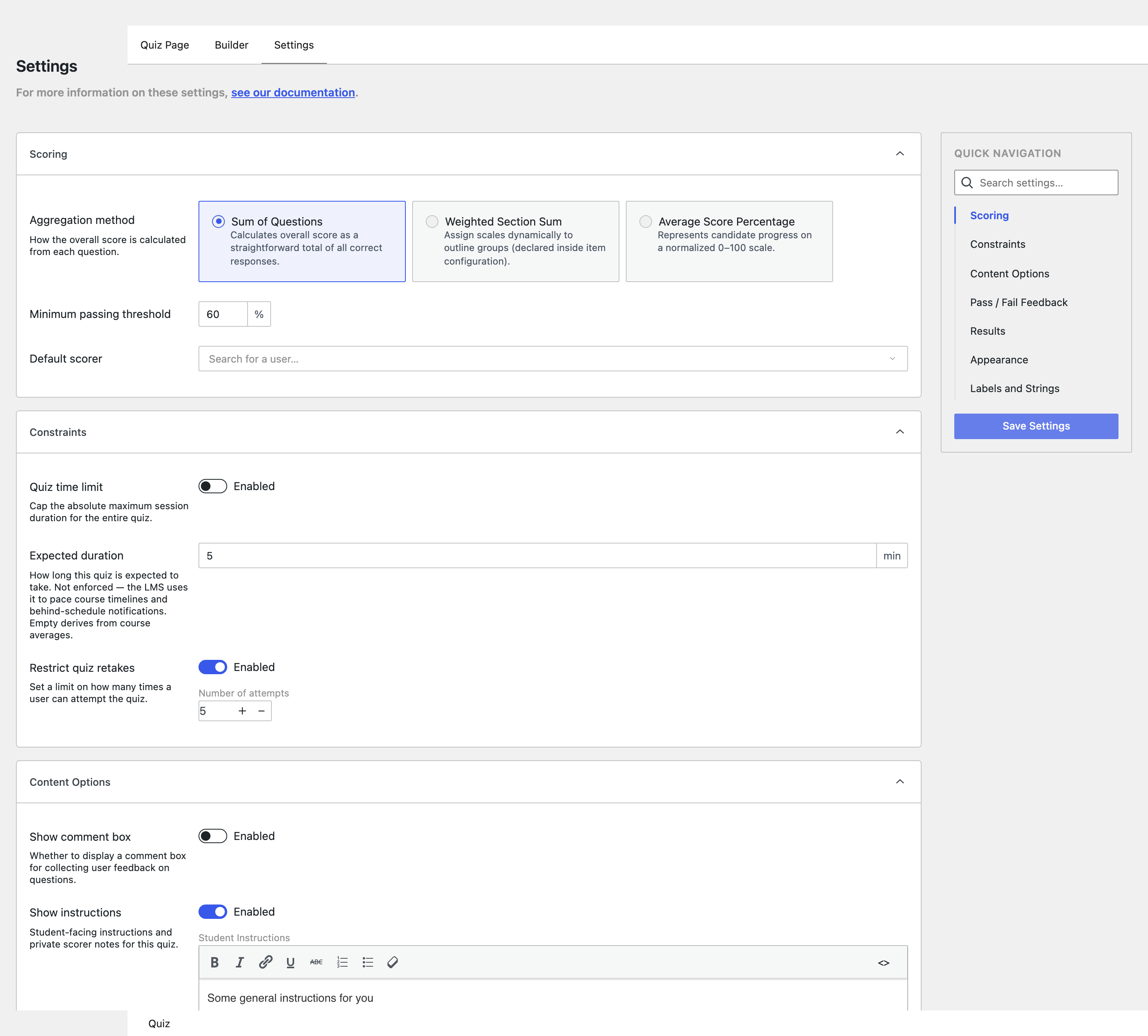
Scoring
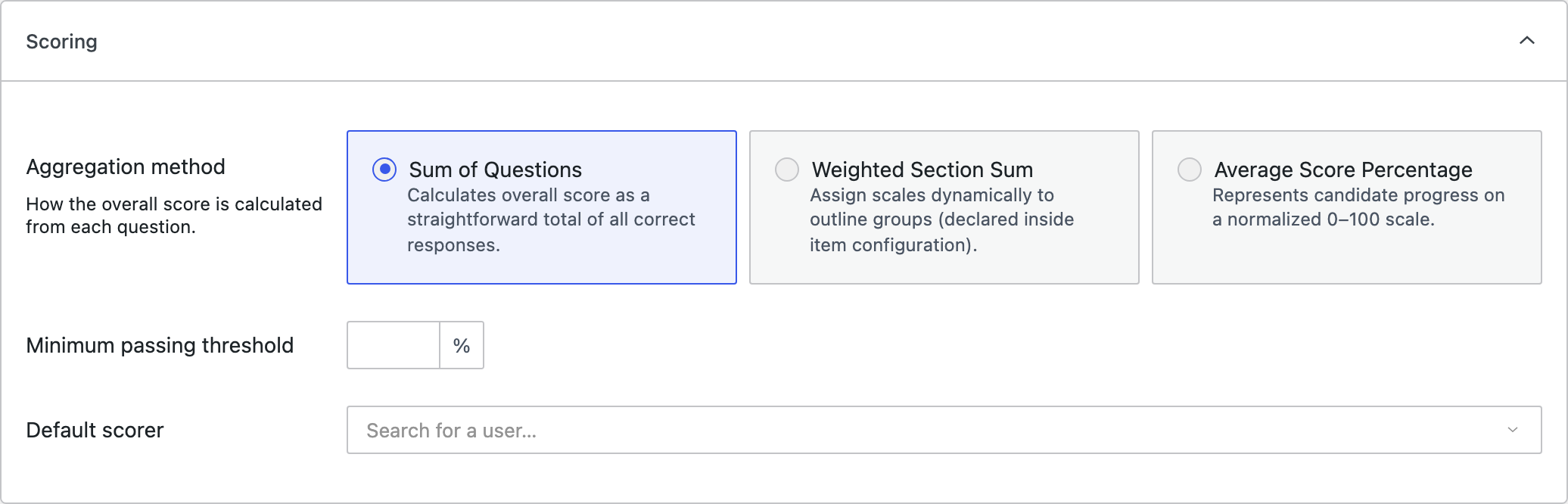
Aggregation method decides how the overall score is calculated from the individual questions:
| Method | Behaviour |
|---|---|
| Sum of Questions | Overall score is a straightforward total of all correct responses. |
| Weighted Section Sum | Scales are assigned dynamically to outline groups, declared inside item configuration. |
| Average Score Percentage | Represents candidate progress on a normalised 0–100 scale. |
Minimum passing threshold is the percentage a candidate must reach to pass. It is what the pass/fail feedback messages are chosen against.
The threshold is one half of the verdict. Questions can also be marked Required to pass where they are placed in the outline, and a candidate must clear the threshold and pass every marked question. Only marked questions gate: with none marked, the threshold alone decides, and a wrong answer elsewhere cannot fail a candidate who is over the bar.
No threshold and no required-to-pass marks means no criterion, and every submitted attempt passes. Set at least one of the two on any quiz that is meant to have a verdict.
Default scorer nominates the user responsible for reviewing submissions that cannot be graded automatically, meaning extended text answers and file uploads. Search for a user and select them.
A quiz containing any manually-graded question will accumulate submissions waiting on a human. Without a default scorer, there is nobody nominated to review them.
Constraints
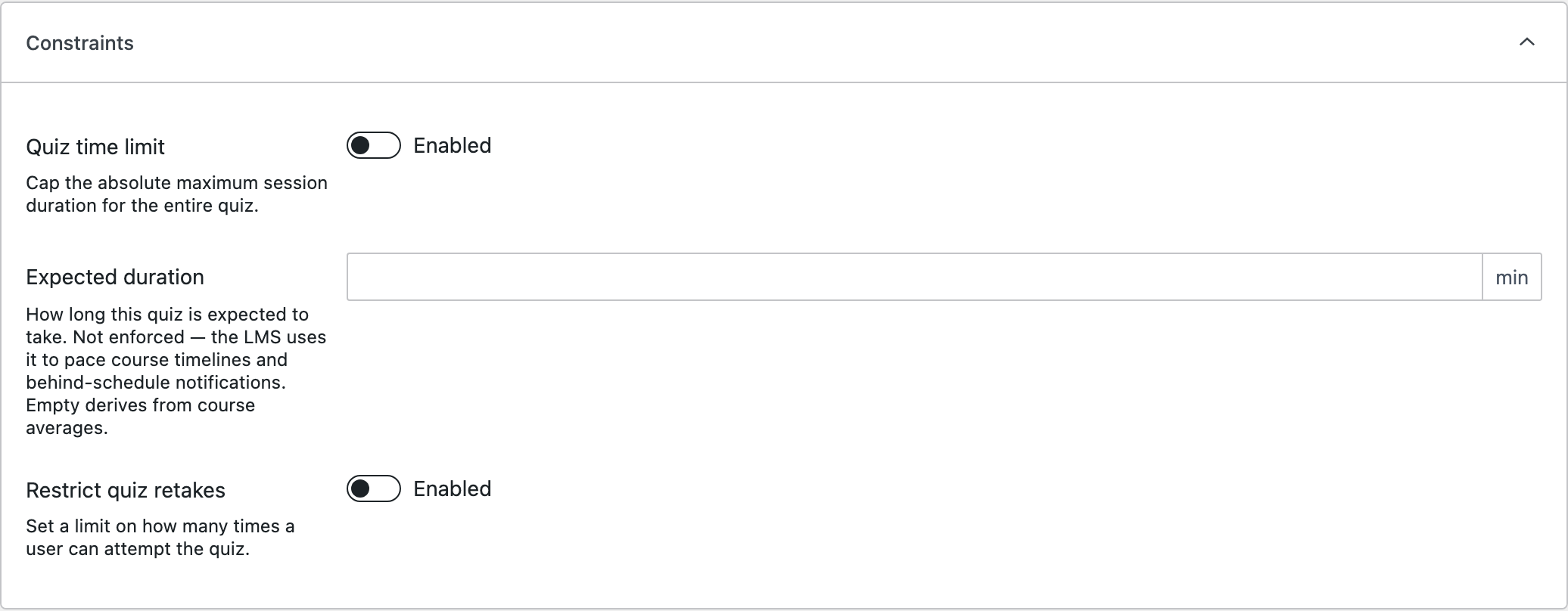
Quiz time limit caps the absolute maximum session duration for the whole quiz.
Expected duration is how long the quiz is expected to take. It is not enforced. The LMS uses it to pace course timelines and behind-schedule notifications. Left empty, it is derived from course averages.
Restrict quiz retakes sets a limit on how many times a user may attempt the quiz.
This is the value that feeds the LMS's expected-completion timeline, alongside the durations set on ordinary steps. If a course reports nobody as behind schedule, an unfilled expected duration on its quizzes is one reason why.
Content Options
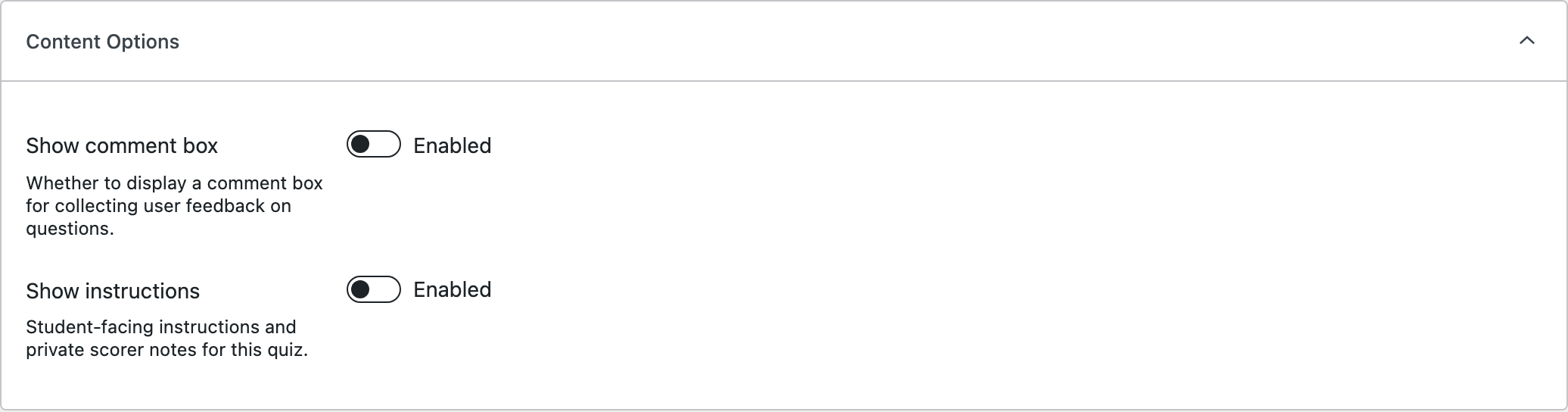
Show comment box displays a box for collecting user feedback on questions.
Show instructions exposes student-facing instructions and private scorer notes for the quiz.
Pass / Fail Feedback
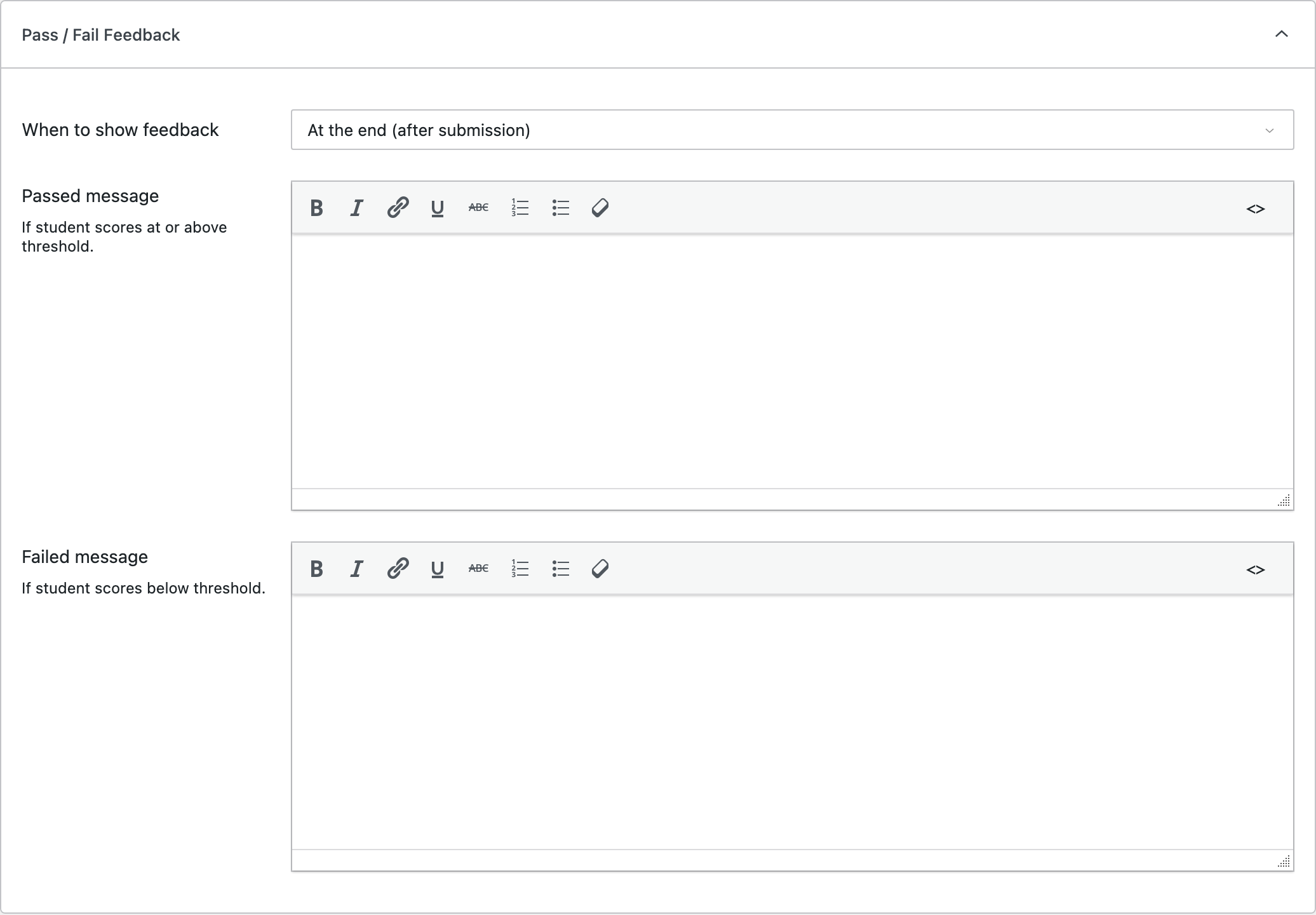
When to show feedback controls the timing, for example at the end after submission.
Passed message and Failed message are rich-text editors for what the candidate sees, chosen by whether they scored at or above the minimum passing threshold.
Results
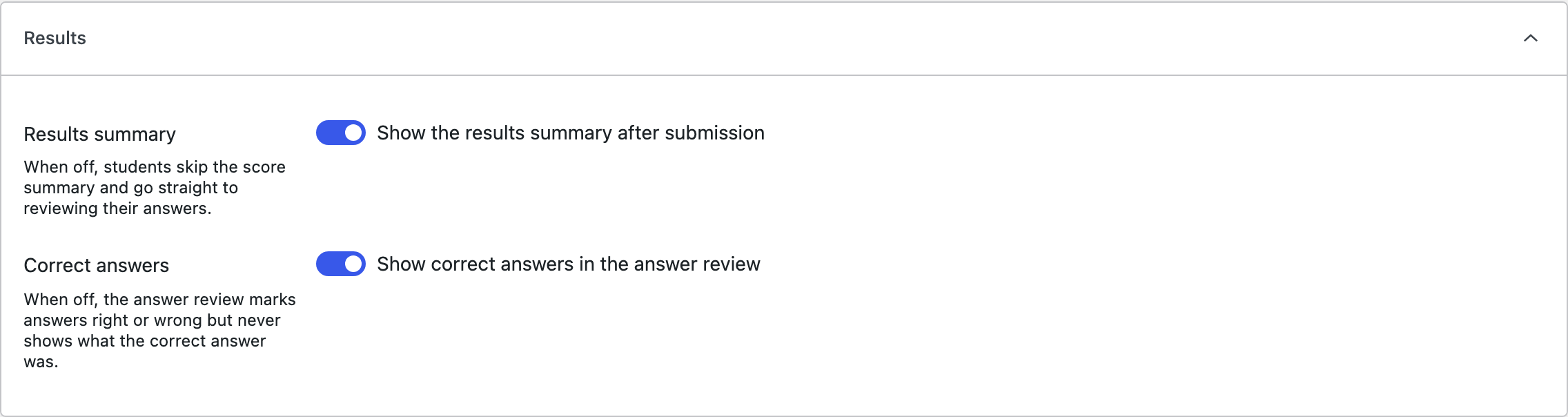
Two switches decide what a candidate is shown after submitting. Both default on.
Show the results summary after submission. Off, candidates skip the "Your results" screen (banner, score card, question breakdown) and land directly in the answer review, both right after submitting and when revisiting a completed quiz.
Show correct answers in the answer review. Off, the review still marks the candidate's own answers right or wrong, but never shows what the correct answer was. The answers are withheld by the server, not hidden on screen, so they cannot be read out of the page.
A grader's note to the candidate always reaches them in the review, whatever these switches say. It was written to the candidate, unlike the answer key.
Appearance
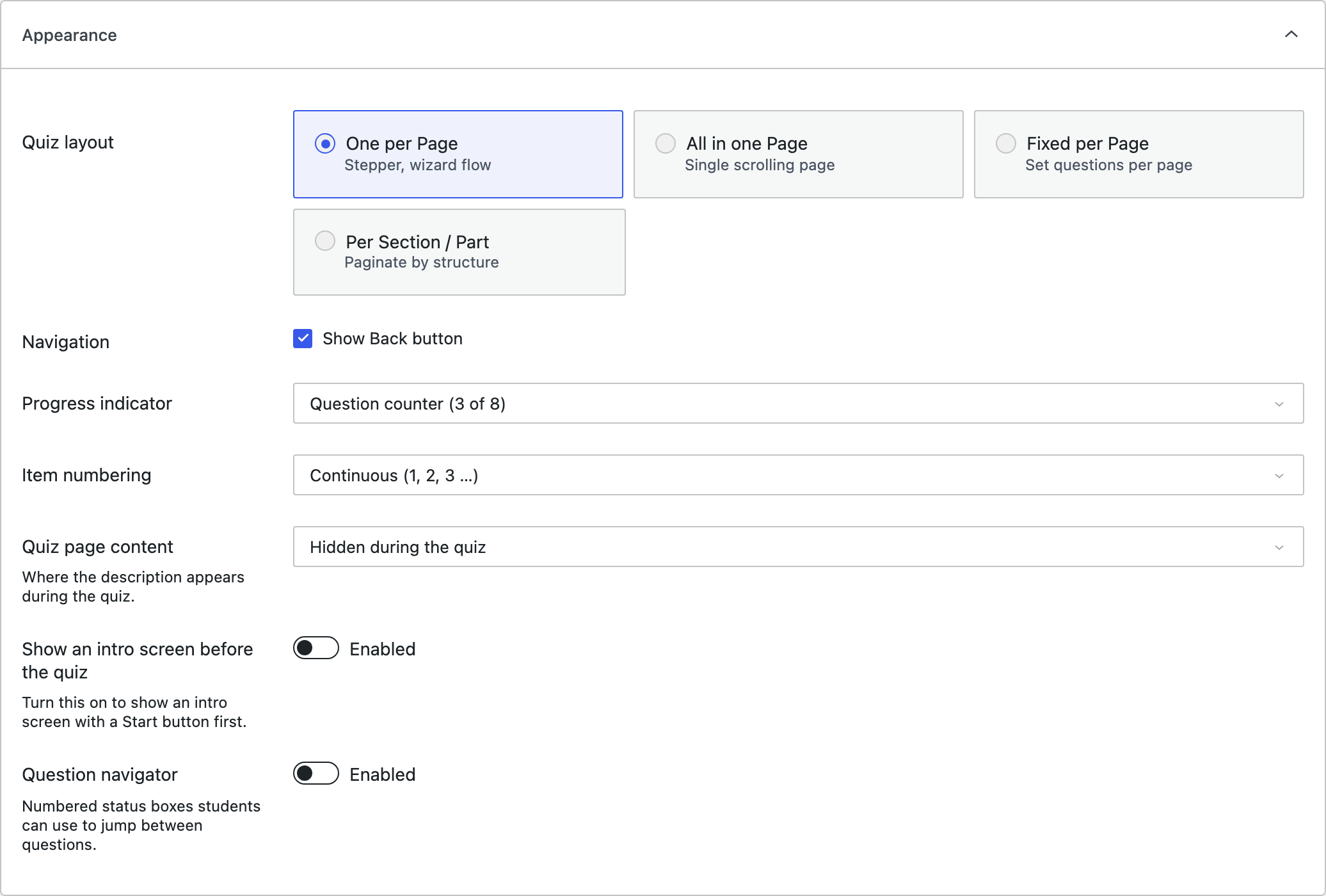
Quiz layout decides how questions are paginated:
| Layout | Behaviour |
|---|---|
| One per Page | Stepper, wizard flow. |
| All in one Page | Single scrolling page. |
| Fixed per Page | A set number of questions per page. |
| Per Section / Part | Paginated by the quiz's own structure. |
The remaining controls tune the player:
- Navigation: whether a Back button is shown.
- Progress indicator: for example, a question counter reading "3 of 8".
- Item numbering: continuous (1, 2, 3 …) or otherwise.
- Quiz page content: where the quiz's description appears during the quiz, including hiding it once the quiz is under way.
- Show an intro screen before the quiz: an opening screen with a Start button.
- Question navigator: numbered status boxes candidates can use to jump between questions.
The question navigator lets candidates move freely between questions. If an assessment is meant to be answered in order and not revisited, turn the navigator off and hide the Back button. The layout alone will not stop them.
Labels and Strings
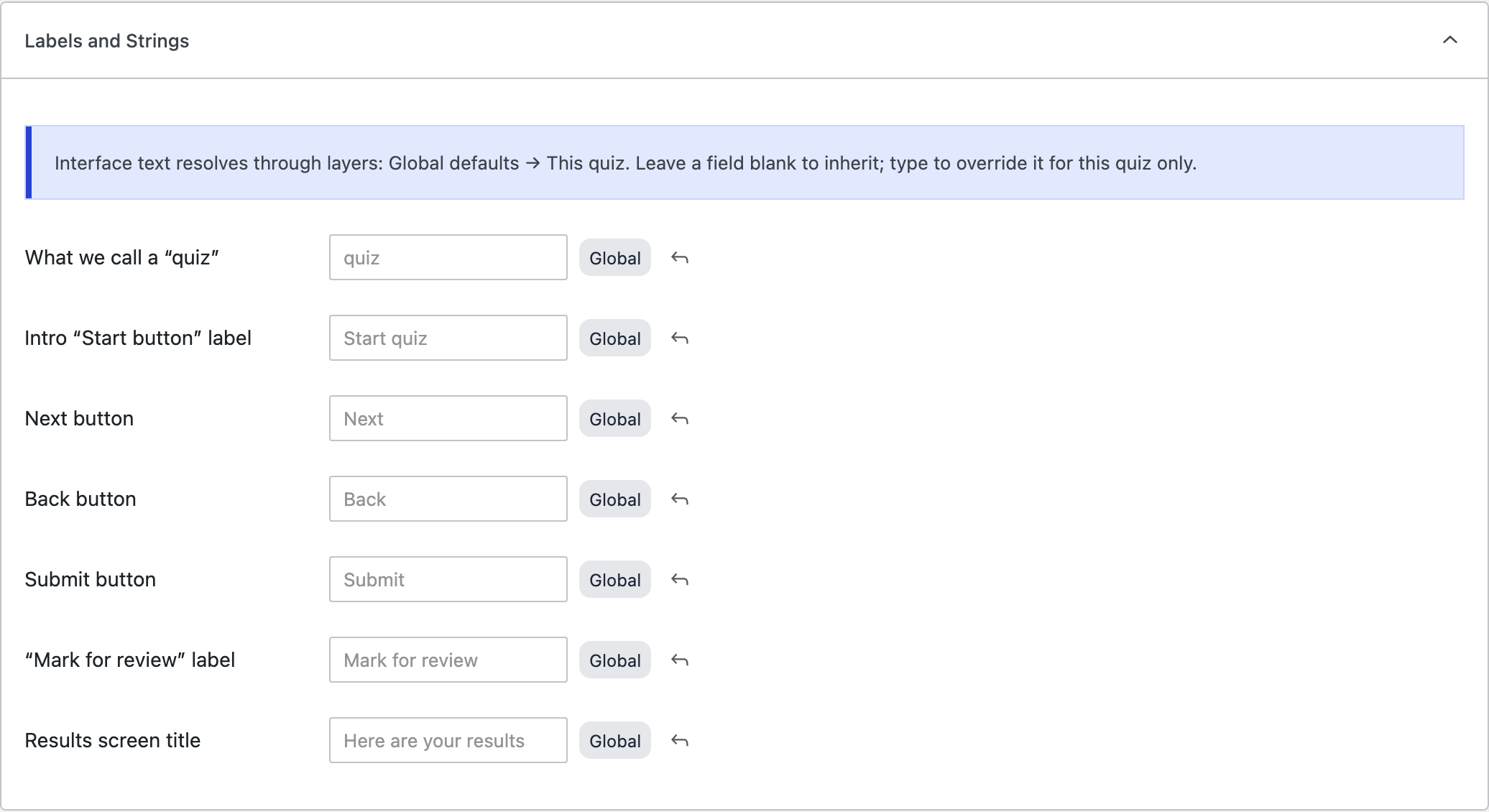
Interface text resolves through layers: global defaults → this quiz. Leave a field blank to inherit the global value; type in it to override for this quiz only. Each field shows a Global badge while it is inheriting, and a revert arrow to drop an override.
Overridable strings include what the product calls a "quiz", the intro Start button label, the Next, Back and Submit buttons, the "Mark for review" label, and the results screen title.
"What we call a quiz" is the field to change when an assessment should read as an exam, a test, or a knowledge check. It propagates through the player's wording rather than leaving you to override each button individually.