Building your quiz
The Builder tab is where a quiz gets its shape.
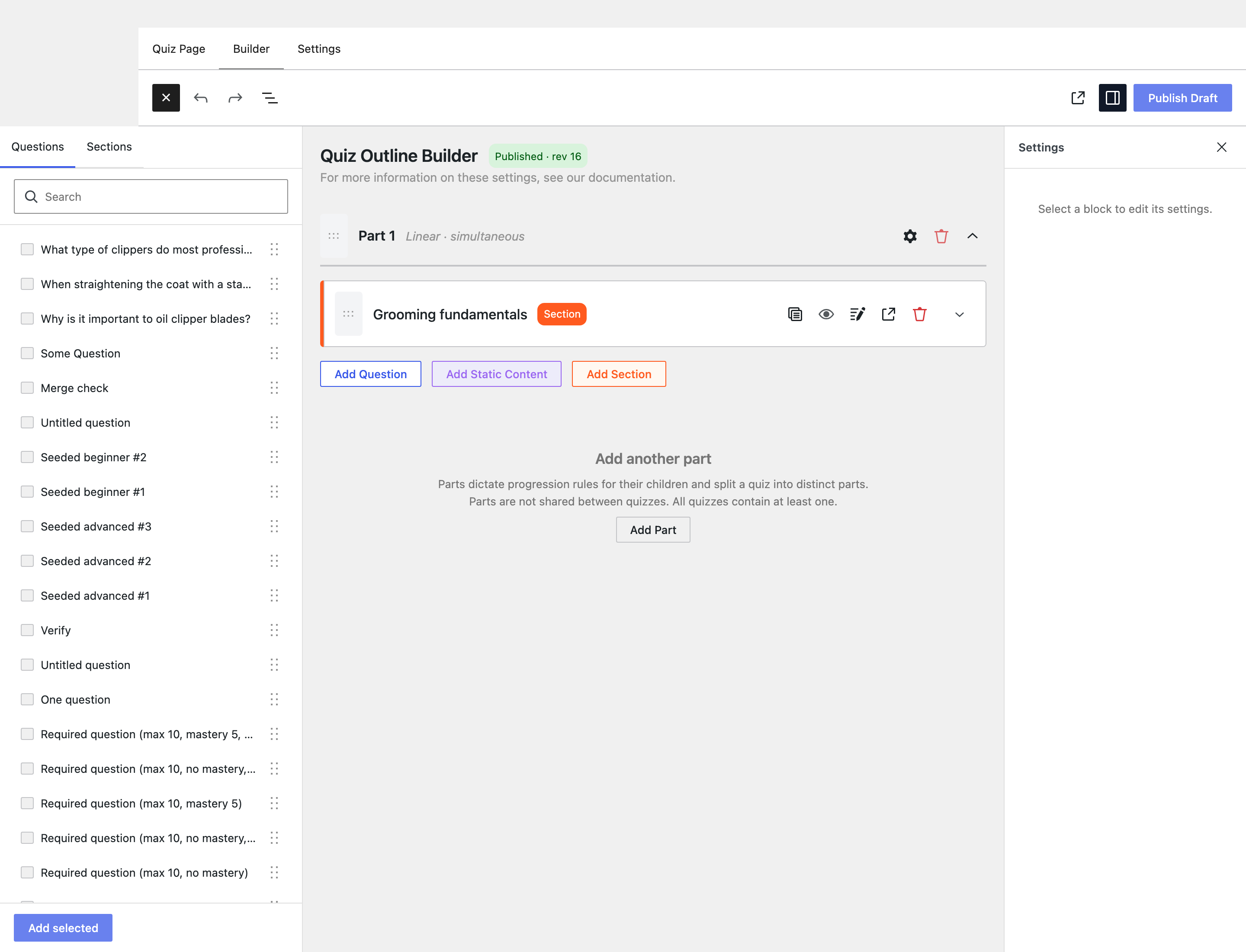
Three columns: the inserter on the left, the outline in the middle, and a settings panel on the right that fills in when you select something.
The hierarchy
| Level | What it is |
|---|---|
| Part | A top-level container that sets progression and delivery rules for everything inside it. |
| Section | A group of related questions and static content. Sections can nest. |
| Question / Static content | Individual test items, or informational passages that are not answered. |
Every quiz has at least one part, created for you as Part 1. Parts are not shared between quizzes, unlike questions and sections, which live in site-wide pools.
The inserter
The left panel has two tabs:
- Questions: every question in the site-wide pool. Search it, tick what you want, and click Add selected. Questions can also be dragged into position.
- Sections: saved question sections, reusable across quizzes. Like questions, they land in the outline the moment you add them, filling in their contents in the background.
Alternatively, build in place with the Add Question, Add Static Content, and Add Section buttons in the canvas.
A question added from the pool is referenced, not duplicated. Editing it changes it everywhere it is used. That is what makes a shared question bank useful, and why it pays to check before you edit one.
Part settings
Selecting a part opens its panel. The part header in the canvas summarises the result, so a part reading Linear · Submit individually is showing you its delivery settings at a glance.
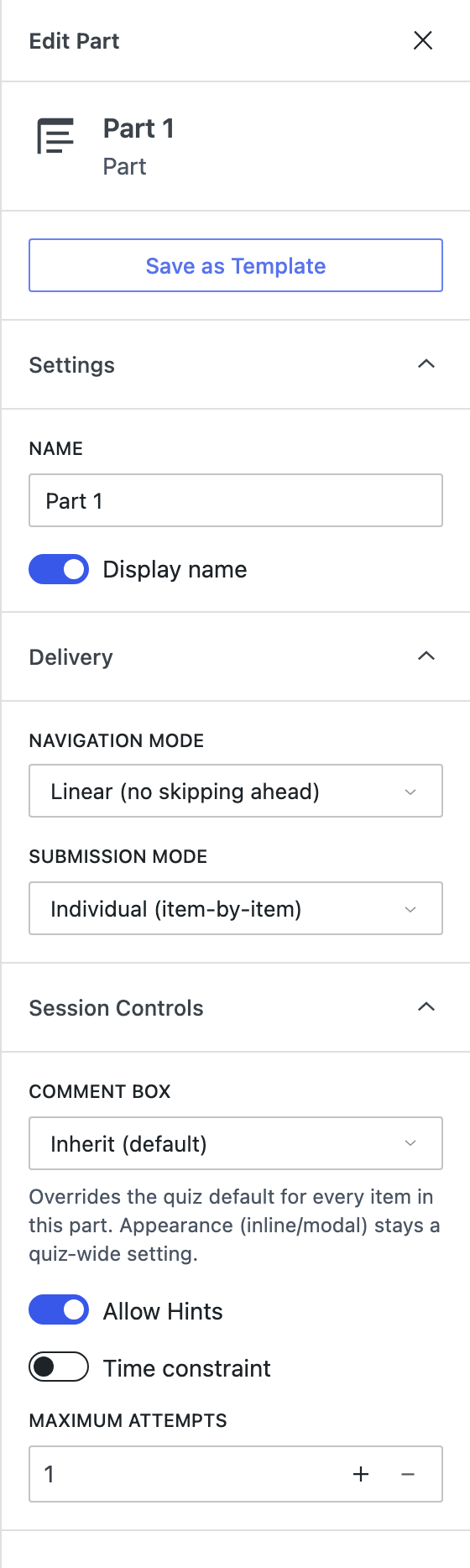
Settings: the part's Name, and Display name, deciding whether candidates see it.
Delivery: the two rules that shape how the part is taken:
| Setting | Options |
|---|---|
| Navigation mode | Linear (no skipping ahead) or Free (move between items). |
| Submission mode | Individual (item-by-item) or All at once (whole part). |
Session Controls:
- Comment box: Inherit (default), Enabled, or Disabled. This overrides the quiz default for every item in the part. Note that whether a comment box appears is a part-level decision, while how it appears (inline or modal) stays quiz-wide.
- Allow Hints: whether hint text can be revealed in this part.
- Time constraint: a time cap on the part.
- Maximum attempts: how many times the part may be attempted.
Because navigation, submission, timing and attempts are all per part, a single quiz can hold a timed linear section that must be submitted in one go, followed by an untimed free-navigation section. Reach for a second part whenever the rules change, not because the topic changes. That is what sections are for.
Reusing a part
Part templates are planned but not yet available. The Save as Template button in the part panel renders disabled until they are.
Sections
Add a section with Add Section, then rename it by double-clicking its title. Inside it you can add questions, static content, or further sections.
Nested sections are shown with an orange rule down the left edge; top-level items use blue.
A section with questions in it is stored and listed under Question Sections in the admin menu, where it can be edited centrally and pulled into other quizzes.
Row actions
Each row in the outline carries actions:
| Action | Notes |
|---|---|
| Duplicate | Clones the row. Unavailable for static content, nested child sections, questions that have not finished saving, and sections containing child sections. |
| Toggle Visibility | Hides or shows the item. Questions only, and unavailable on a question carrying an authored pre-condition, which the toggle would otherwise overwrite. |
| Edit in New Tab | Opens the full editor in a new tab. Available for pool-backed questions and saved shared sections. |
| Preview in New Tab | Opens the item in the preview, as a candidate or a scorer would meet it. |
| Remove | Takes the item out of this quiz's outline. |
Rows also have a drag handle for reordering and a chevron to expand.
Remove takes the item out of this outline. The question itself stays in the site-wide pool and in any other quiz using it. To delete a question outright, do it from Tangible Quiz → Questions.
Edit opens in a new tab so that unsaved changes to the outline survive while you work on the question.
Saving
The toolbar's Publish Draft commits the outline. The status badge beside the builder heading shows where the quiz stands, for example Published · rev 1.
Publishing is what delivers question updates
A published quiz delivers the question content it was published with, not whatever the pool holds today. Publishing a question updates the pool; candidates see the update once the surface that owns the question republishes.
- A question sitting directly in a part travels with the quiz. Publishing the question opens a draft on every published quiz delivering it and raises a Questions have changed banner in the builder. Publishing the quiz delivers the updates to new attempts.
- A question inside a shared section travels with the section. Saving in the section editor republishes the section, after which the quizzes using it show their section-update banner and deliver on their next publish.
Attempts already in progress are never changed underneath the candidate: an attempt keeps the content it started with.
Questions are a quiz's most consequential content, so they follow the same draft and publish gate as the rest of the outline. An edit to a shared question cannot silently rewrite a live assessment; the quiz author sees the change coming and chooses when it lands.