The question editor
Questions live in a site-wide pool, so the question editor is a screen in its own right. Get to it from Tangible Quiz → Questions, from Add New Question, or from Edit in New Tab on a row in a quiz outline.
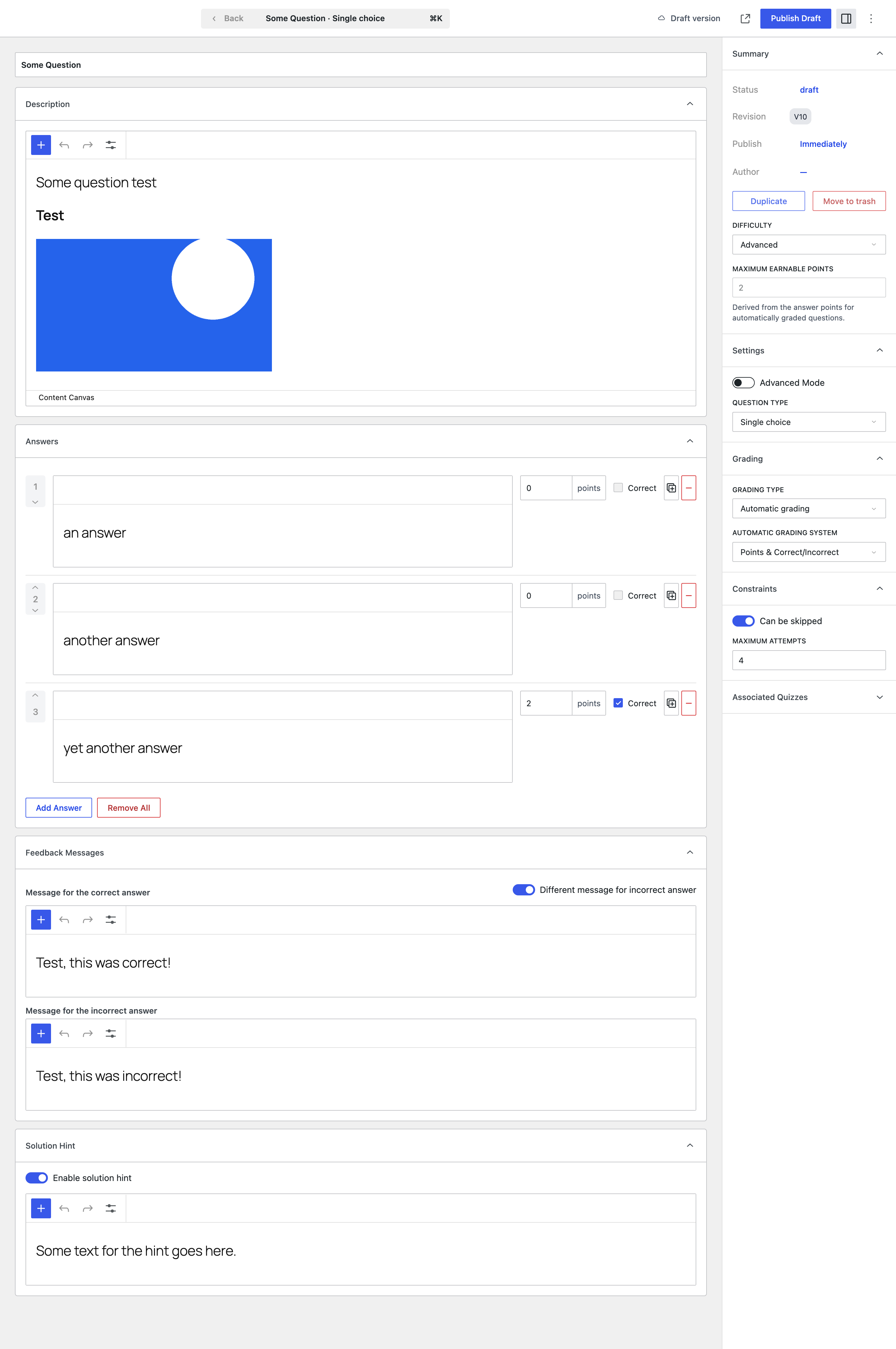
The layout is a stack of collapsible panels down the middle and a settings sidebar on the right. The toolbar carries Publish Draft, the Preview question link, the sidebar toggle, and a command palette on ⌘K.
The panels
Title
The field at the very top. It is the question's name in the pool and in quiz outlines.
Description
The block editor where the question itself is written. Being the block editor, it takes formatted text, images, lists, anything you would put in a post.
Answers
Each answer row has a number and reorder arrows, a rich-text body, a points value, a Correct checkbox, and controls to duplicate or remove it. Add Answer appends a row; Remove All clears them.
Points are per answer, not per question. That is what allows partial credit: a "nearly right" option can carry some of the marks.
Feedback Messages
Message for the correct answer is shown when the candidate gets it right. Turning on Different message for incorrect answer reveals a second editor for when they do not.
Correct/incorrect feedback is an artefact of automatic grading. A manually graded question has no verdict at submission time to choose a message against, so this panel does not appear for manual types.
Solution Hint
Enable solution hint reveals an editor for optional guidance a candidate can choose to reveal while answering. Whether hints can be revealed at all is also gated per part, by Allow Hints in part settings.
The settings sidebar
Summary
Status, revision number, publish timing, and author, plus Duplicate and Move to trash.
Difficulty selects from the site's difficulty scale. The available levels are whatever your site defines, not a fixed Beginner/Intermediate/Advanced set.
Maximum earnable points is the total available for the question. For automatically graded questions it is derived from the answer points rather than typed in; where grading criteria are in use it syncs to the highest criterion.
Settings
Advanced Mode switches the question from simple scoring to a rule builder. See below.
Question type is one of four:
| Type | Behaviour |
|---|---|
| Single choice | One correct answer. |
| Multiple choice | Several answers may be selected. |
| Extended text | An open text box for essays and short answers. |
| Upload | The candidate submits a file. |
Upload questions add Allow multiple file uploads and a File upload limit.
Grading
Grading type is Automatic grading or Manual grading. Automatic marks the answer on submission; manual holds the submission for a person to review, which is necessary for extended text and uploads, and available on choice questions too if you want a human to look.
Automatic grading system currently offers Points & Correct/Incorrect: the response is judged right or wrong and the configured points are awarded.
Enable grading criteria opens per-criterion scoring, for questions marked against a rubric rather than a single right answer.
A manually graded question produces submissions that sit unmarked until someone reviews them. Set a Default scorer on the quiz's Scoring settings so there is a named person responsible.
Constraints
Can be skipped lets the candidate move past the question without answering. Maximum attempts caps how many times they may try it.
Skippability is a navigation permission set here, on the question. Whether a question must be passed for the candidate to pass the quiz is a separate flag set on the question's place in a quiz outline, so the same question can be a required gate in one quiz and optional in another. See how the pass verdict is decided.
Associated Quizzes
Lists the quizzes this question appears in. Because questions are shared, this is the panel to check before editing one: it tells you what else your change will affect.
Advanced Mode
Turning on Advanced Mode adds two panels to the middle column:
- Scoring and Feedback Conditions: named conditions built against the question's answers.
- Scoring Rules: how those conditions award points.
It also changes the Feedback Messages panel: instead of one correct/incorrect pair, feedback messages become rule-gated, so different combinations of answers can produce different responses.
Simple mode leaves any stored advanced rules untouched rather than deleting them, so toggling Advanced Mode off does not destroy work, but only simple-mode scoring will be applied while it is off.
Simple mode (points per answer, one correct/incorrect message pair) covers most questions. Reach for Advanced Mode when scoring depends on combinations of answers, not because a question feels important.
Previewing
Preview question in the toolbar opens the question on the front end, rendered by the player's own components. The same preview exists for a section, for a whole quiz (each editor has the matching toolbar button), and for any row in a quiz outline via Preview in New Tab.
A bar across the top drives the simulation:
- Previewing as switches between the Student view and the Scorer view. The scorer view shows the submitted response, the grading criteria, and the note field, as a grader will meet them.
- Status simulates Ungraded, Graded - Passed, or Graded - Failed, so feedback and the right/wrong colouring can be checked without taking the quiz.
- Previewing a whole quiz adds a View mode select, flipping between one-at-a-time and all-on-one-page.
The choices write themselves into the URL, so a particular preview state is a shareable link. Previews prefer draft revisions at every level, and are gated by the same capabilities as editing, which is what makes showing answer keys acceptable.