Grading a submission
Opening an attempt from the queue gives you the grading view: the candidate's answers down the left, the attempt's summary and controls on the right.
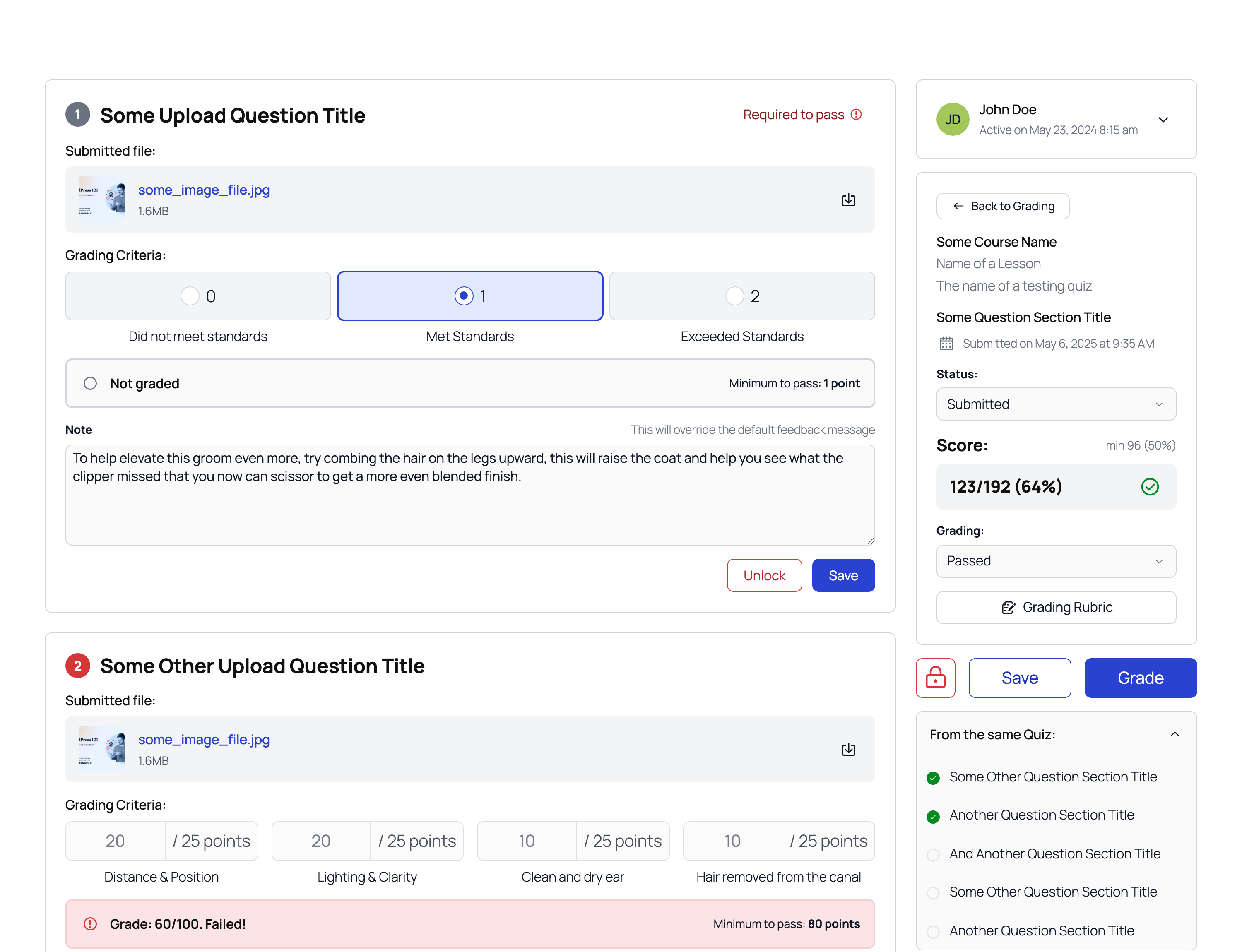
The sidebar
The right column identifies what you are marking: the candidate, the quiz, the attempt's reference, and when it was submitted. Beneath that:
- Status: where the attempt stands, for example Submitted.
- Score: the running total. Before grading it reads grading pending, and a quiz with no maximum declared shows no maximum declared rather than inventing a denominator.
- Grade: settles the attempt once the questions are marked.
- Submission History: the candidate's other attempts at this quiz, each selectable, plus a dated row per submission of the current attempt once work has been returned and resubmitted. If the quiz is anonymised, or history cannot be loaded, the panel simply stays hidden.
Marking a question
Each question card shows what the candidate submitted: Submitted text for an extended-text answer, or the file with a preview and a download for an upload.
Below it:
Grading Criteria holds the criteria configured on the question, if any.
The verdict is where you record the outcome. It reads Not graded until you set it, alongside the pass mark: either Minimum to pass with the figure, or No pass mark set where none was configured. Once marked, it reports the grade and points and reads Passed! or Failed!.
Note is feedback to the candidate. While it is empty, the field shows the default feedback message that would otherwise apply: the pass or fail message authored on the question's section, keyed to the verdict you are entering. What you are overriding is in front of you, and nothing you didn't type can be saved by accident. In the WP Admin grading view the note is a full rich-text editor; the front-end view takes plain text.
Whatever you write here is shown to the candidate instead of the default message sitting in the empty field, not alongside it. Leave it empty to let the default stand. The note reaches the candidate in their answer review, beneath the graded question.
Save commits the question's grade. A question that has been graded once rests locked, and the button becomes Edit, which reopens the fields and reverts to Save while you make the change.
Unlocking for resubmission
Unlock on a question card stages it for return to the candidate. Nothing is sent yet: Lock on the card un-stages it, Unlock All and Lock All in the sidebar do the same across every card, and grading is disabled on a staged card.
The return happens when you press Save. The Unlock submissions? dialog asks for a Reason, which is required, kept on the grading record for other graders, and never shown to the student. Return to student posts the batch.
From there the attempt reopens for the candidate: the returned questions are editable, everything else stays locked read-only, and the grade you had already given remains visible to them as feedback, which is what makes "here is what was wrong, try again" work as a single gesture. Their resubmission comes back into the queue assigned to you, adds a row to Submission History, and is not held to the quiz's time limit.
Once an attempt is graded as a whole, its verdict has been reported and unlock is refused. The redo path for a settled attempt is granting another attempt. Auto-scored questions aren't returnable either, since resubmitting one would just re-run the machine verdict.
Settling the attempt
Grade settles the attempt as a whole, once the questions that need a human have been marked. That is the point at which the attempt gets a pass or fail and the candidate sees a result.
An attempt whose questions are all machine-marked will say this attempt has no human-graded questions. There is nothing here for you to do, and it will already have been scored automatically.
An attempt closes when the candidate submits. That is not a verdict. A quiz with any manually graded question sits closed-but-undecided until a grader settles it, which is why Ungraded in the queue can contain attempts that finished days ago.
Granting another attempt
Initiate New Attempt, in the Submission History panel, gives the candidate one extra try.
This grants the candidate one extra attempt at this quiz, so they can retake it themselves. The grant is recorded with your name and reason.
A Reason is required. The grant is attributed to you and stored with that reason, so the record of why someone got another go survives the conversation that produced it.
This is the supported route around an exhausted attempt limit. It is a deliberate, attributed grant rather than an implicit override: raising the quiz's retake limit would change the rule for everyone, where a grant applies to one candidate.
Unlocking a question is for one answer that deserves another pass. If the candidate should retake the quiz, because they misread the instructions or a technical problem spoiled the session, grant an attempt instead and say so in the reason.