Step and section settings
Selecting an item in the Builder and choosing Edit Settings opens the inspector on the right. Sections, multi-step pages, and steps share the same panel structure but offer some different settings.
The inspector has two tabs. Step holds the settings described here. Hot Field appears alongside it and configures the hot field currently selected in the content. See hot fields.
Settings
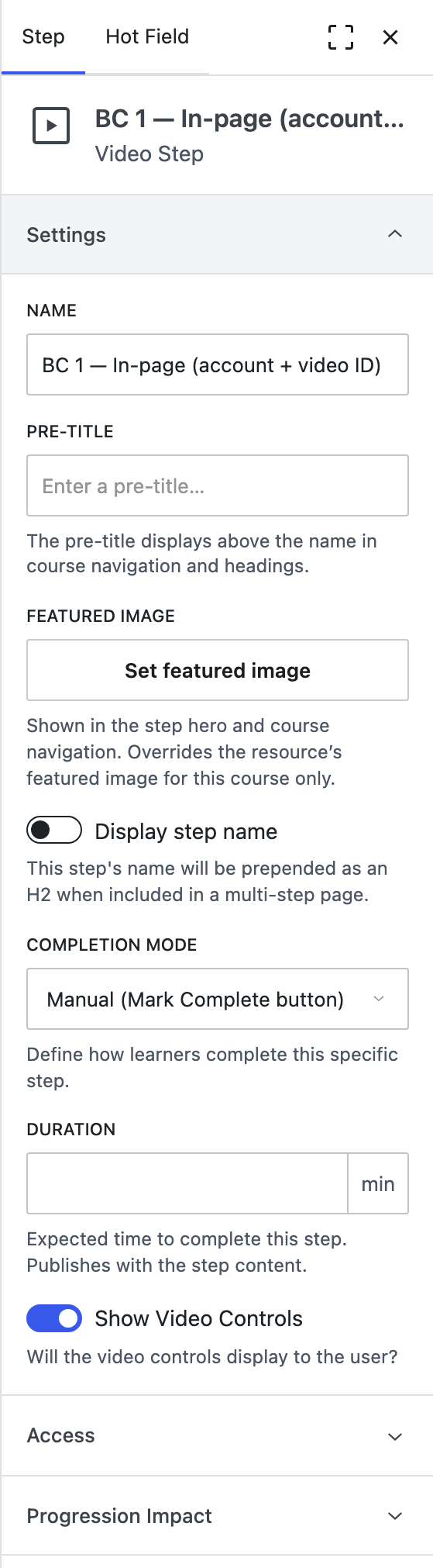
| Field | What it does |
|---|---|
| Name | The item's title. |
| Pre-title | Short text displayed above the name in course navigation and headings. |
| Featured image | Shown in the step hero and in course navigation. Overrides the underlying resource's own featured image, for this course only. |
| Display step name | When on, the step's name is prepended as an <h2> where the step appears inside a multi-step page. |
| Completion mode | How a learner completes this step. Defaults to Manual (Mark Complete button). |
| Duration | Expected time to complete, in minutes. Publishes with the step content. |
Divided by the course's Daily Study Time, duration produces the expected completion timeline that projected progress and behind-schedule notifications are measured against. Steps with no duration contribute nothing to that calculation, so a course with empty durations cannot report anyone as behind schedule.
Resource-specific controls appear in this section too. A video step adds:
- Show Video Controls, deciding whether playback controls are exposed to the learner.
- Autoplay: Inherit, On, or Off. The inherit option shows what it resolves to, as Inherit (on), reading the resource's own setting and then the site default under Video Resource Settings. Start muted accompanies it and defaults on, because browsers refuse audible autoplay.
- Aspect ratio, for embeds that declare no shape of their own, or declare one that crops the content. Enter a ratio like
16:9or4:3, or leave it blank to use the video's own shape, falling back to 16:9.
Plain oEmbed videos and Brightcove Gallery experiences are loaded from another site and ignore the autoplay setting. The editors disable the control for those sources and say why.
Access
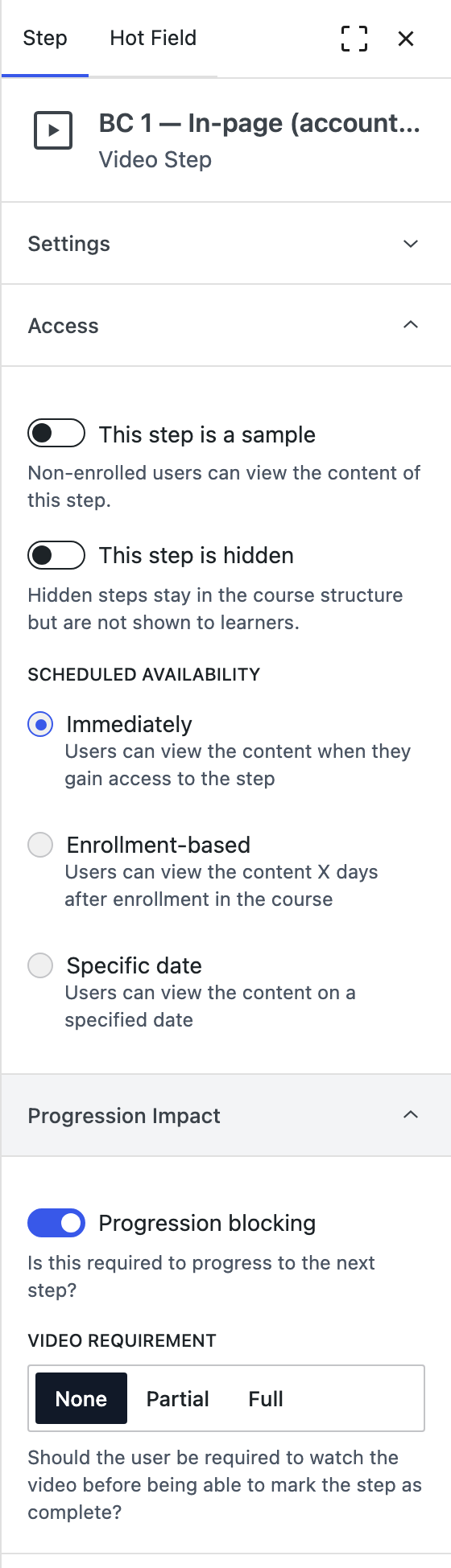
This step is a sample lets non-enrolled users view the content, a free preview of otherwise gated material.
This step is hidden keeps the item in the course structure but does not show it to learners. Useful for parking content you are not ready to release without deleting it.
Scheduled availability
Three options control when a learner may open the content:
| Option | Behaviour |
|---|---|
| Immediately | Viewable as soon as the learner gains access to the step. |
| Enrollment-based | Viewable a set number of days after the learner enrolled in the course. |
| Specific date | Viewable from a fixed calendar date. |
Enrollment-based scheduling is per learner. The clock starts at each individual's enrollment date, so a cohort that joins over several weeks unlocks content on a staggered schedule. A specific date is absolute and applies to everyone at once.
Progression impact
Progression blocking decides whether this item must be completed before the learner can move on. With it off, the step can be left unfinished without stalling the course.
For video steps, Video requirement adds a stronger gate on completion itself:
| Setting | Effect |
|---|---|
| None | The learner may mark the step complete at any time. |
| Partial | Some of the video must be watched before completion is allowed. |
| Full | The video must be watched through before completion is allowed. |
Partial and Full depend on playback progress being reported back. Plain oEmbed embeds do not report progress, so a video requirement on a plain-oEmbed step has nothing to measure. Use Brightcove, Vimeo, or YouTube where completion must be enforced. See the video source settings under where things live.
Sections and multi-step pages
Sections and multi-step pages expose the same panel: naming, access and visibility, scheduled availability, and progression impact all behave as they do for a step, applied to the container and everything inside it.
A section can be converted to multi-step page and vice versa if they qualify. In order to be converted to a multi-step page, a section must not contain any multi-step pages. In order to be converted to a section, a multi-step page must not be nested within a section.
The Optional, Sample, and Hidden flags are also listed for every step at once in the Steps table of course settings. The inspector is better for configuring one item thoroughly; the table is better for reviewing the whole course at a glance.