Managing enrollments
An enrollment is the link between a user and a course. Until a user is enrolled, they have no progress record, so a course cannot be started, progressed through, or completed.
You cannot test the completion flow against your own admin account without enrolling first. Enroll a test user, then log in as them. Administrators bypass most gates, so testing as an admin will not show you what a learner sees.
Opening the enrollment screen
Enrollments are managed per user, from the Users list.
- Go to Users → All Users.
- Hover the row for the user you want, to reveal the row actions.
- Click Manage enrollments.
This opens the Manage Course Enrollments screen at admin.php?page=lms-user-enrollments&user_id=…. It is a full admin page presented as a large dialog, and closing it returns you to wherever you opened it from.
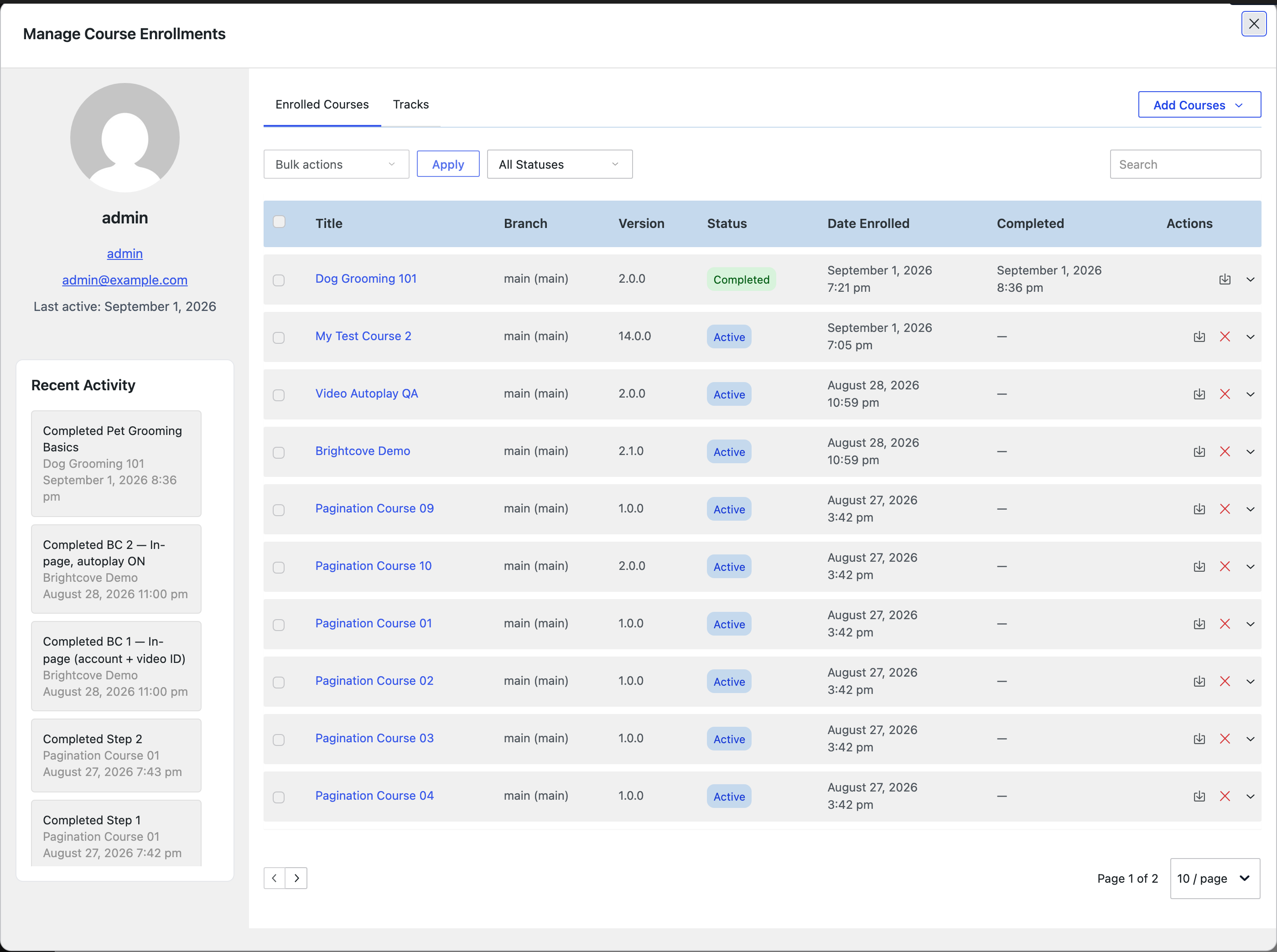
The left column identifies the user (display name, username, email, when they were last active) and lists their Recent Activity: the most recent step completions, each with the course it belongs to and a timestamp. It is the quickest way to see whether someone is actually working through a course or has stalled.
This screen requires the lms_manage_enrollments capability, which by default only administrators hold. Editors who can build courses cannot manage enrollments. See roles and permissions.
Enrolling a user
Click Add Courses to open the course picker.
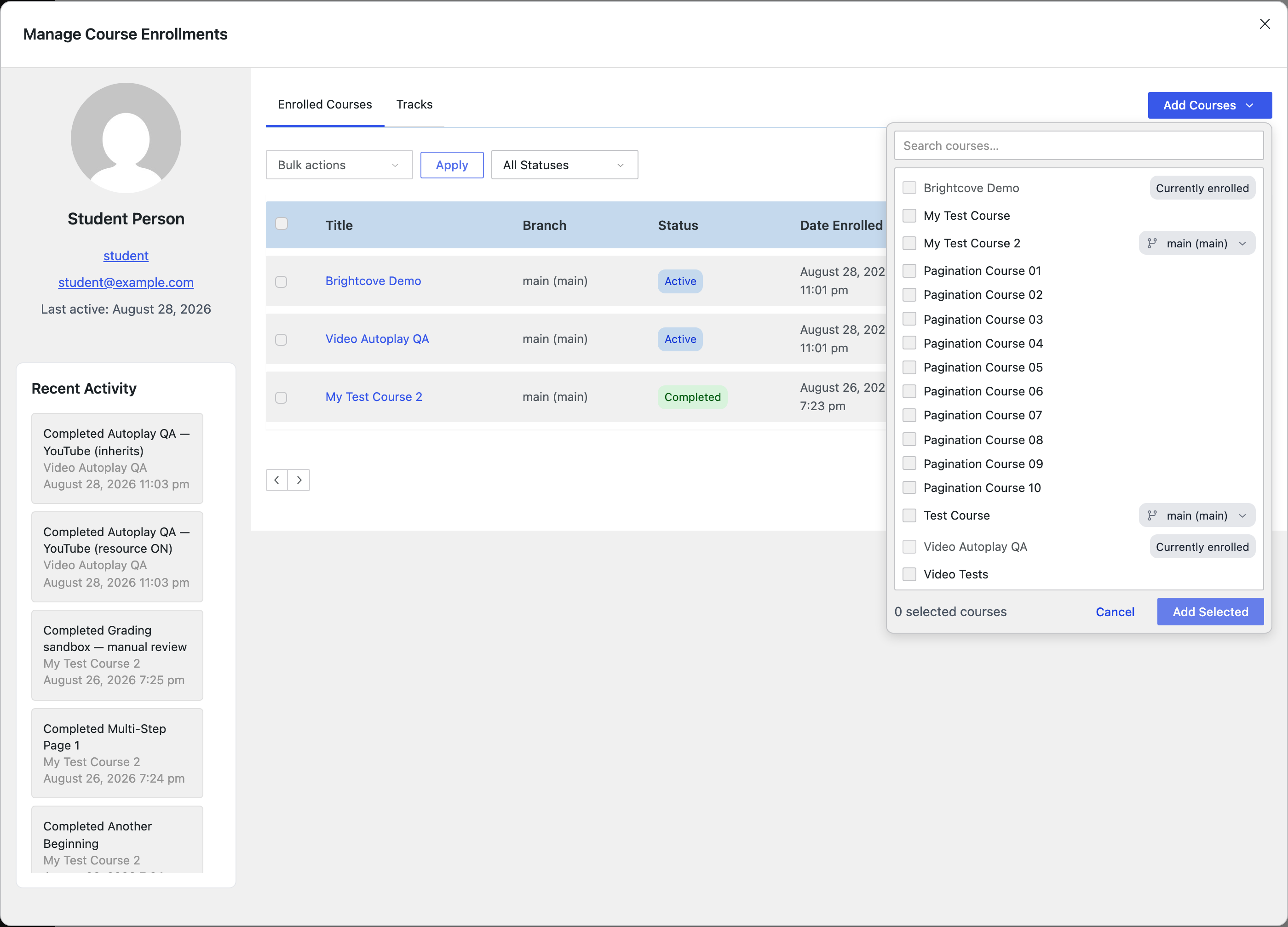
- Search or scroll to find the courses you want.
- Tick each one. Courses the user is already on are marked Currently enrolled and cannot be selected twice.
- Choose a branch where one is offered. Courses that have branches show a branch selector beside them, defaulting to
main. - Click Add Selected.
The footer keeps a running count of how many courses are selected. If some of the batch fail to enroll, the successful ones still go through and the failures are reported individually rather than rolling the whole batch back.
The enrollments table
| Column | What it shows |
|---|---|
| Title | The course, linked to its editor. |
| Branch | Which branch this enrollment follows. |
| Version | The course version this enrollment is pinned to. |
| Status | Active or Completed. |
| Date Enrolled | When the enrollment was created. |
| Completed | When the course was completed, or — if it has not been. |
| Actions | Export, unenroll, and expand. |
Above the table, a status filter and a search box narrow the list, and Bulk actions applies an action across every ticked row.
An enrollment pins a version, so after a publish without migration two students of one course can be on different content, each measured against the version they are actually on. The Version column reports which. A dash means the enrollment predates versioned publishing or points at a draft.
Unenrolling
The red ✕ in a row's actions unenrolls the user from that course. You will be asked to confirm, naming both the user and the course.
Their progress is preserved as an expired attempt rather than deleted. That keeps the historical record intact for reporting, and means an accidental unenroll does not destroy someone's work. It also means re-enrolling a user does not silently resurrect their old progress into the new attempt.
Correcting someone's progress
Expanding a row (the chevron at the end) reveals the progression detail for that enrollment, and this is where progress can be corrected by hand.
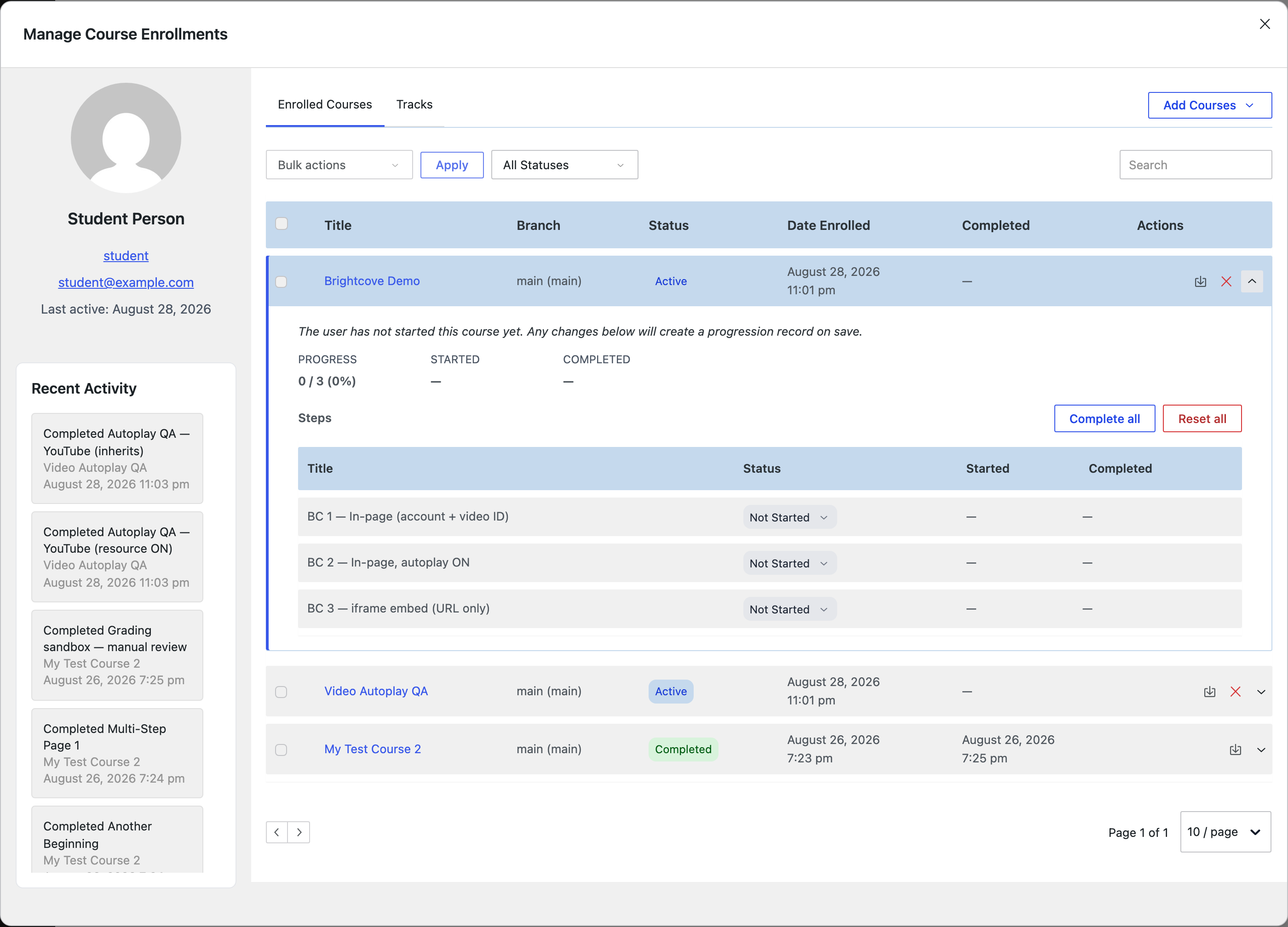
The summary line gives Progress as completed-over-total with a percentage, plus the Started and Completed timestamps. Below it, every step in the course is listed with its own status control, so an individual step can be moved between Not Started, Started, and Completed. Complete all and Reset all apply to the whole course at once.
Changes are staged rather than applied immediately. A bar appears at the foot of the dialog listing what is pending, and nothing is written until you save. Closing with unsaved changes prompts you first.
If the user has never opened the course, the panel warns that saving will create a progression record for them. Enrolled students with no progress do not yet have a progression record, and need it to store any progress you apply by hand.
Tracks
The Tracks tab is a placeholder. It is visible in the interface but reports that tracks are coming soon, and has no functionality yet.