Building your course outline
Tangible LMS offers three broad types of course outline item:
- Section: a container that groups steps and multi-step pages together. Sections cannot be nested within sections.
- Multi-Step Page: a container that groups steps together presentationally. Multi-step pages will be presented in the course viewer as a single step, but can contain multiple steps of various types. A good use of a multi-step page would be steps with multiple videos, or steps with a video and a quiz.
- Step: a step is where the content lives. It wraps a resource of type video, rich text, WP post, or Tangible Quiz, providing settings for how a student should engage with the resource.
All items can be organised via drag and drop, keyboard controls, the overview panel, and the provided buttons for moving items up and down. Items can be inspected to edit hot field values and section and multi-step page settings.
The overview panel
The overview panel provides a searchable, condensed view of your course structure for quick navigation and quick reorganisation. Open it by clicking the  button in the toolbar. Once open and when search isn't active, you can use the provided drag handles (
 ) to move items up and down within their hierarchical level.
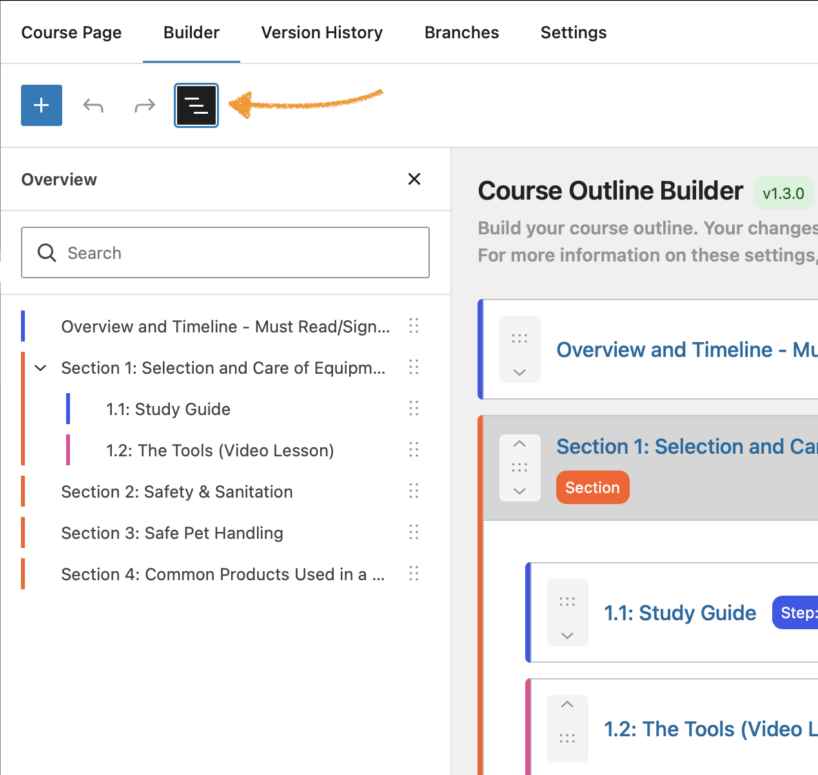
Clicking on an item's title in the overview panel will scroll the main builder to that item, select it, and unfurl parent containers if it has any.
The inspector
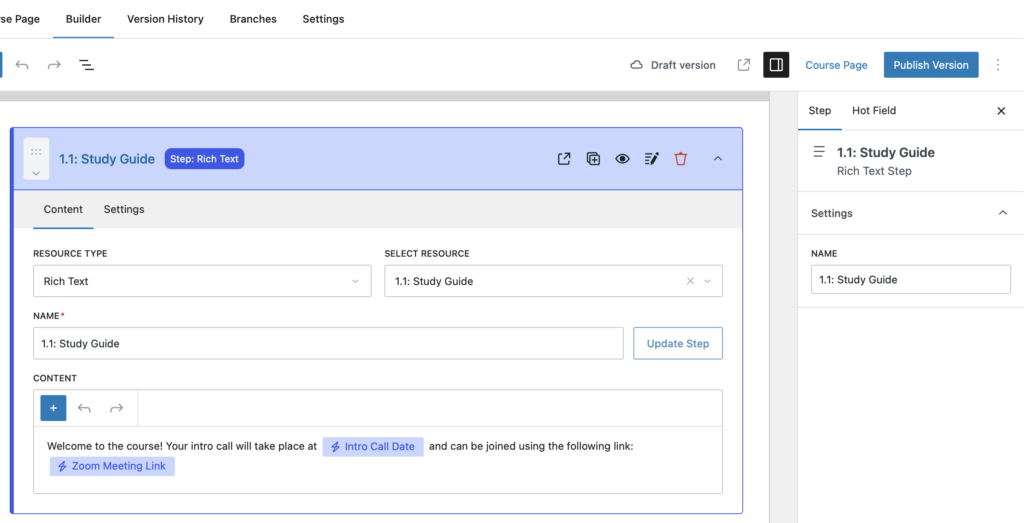
The inspector can be opened using the  button in the toolbar. It contains a title setting, additional settings for sections and multi-step pages, and a hot field tab for configuring hot fields within rich text. While the inspector is open, click on an item header or panel, or select it in the overview panel to inspect it. The inspector can also be opened with the Edit settings button on each step.
Hot fields
Hot fields are named "chips" inserted into rich text content whose values can be updated per branch, allowing contained overrides within content for small, cohort-specific modifications. To insert a hot field into a rich text step, open the panel and use the  button to create a new hot field. If you select text and click the hot field creation button, that text will be used as the name for the hot field.
Editing one in place
Click the text inside a hot field chip to select it, then open the Hot Field tab of the inspector. It carries the field's Name and Type under Settings, and its Default Value under Value.
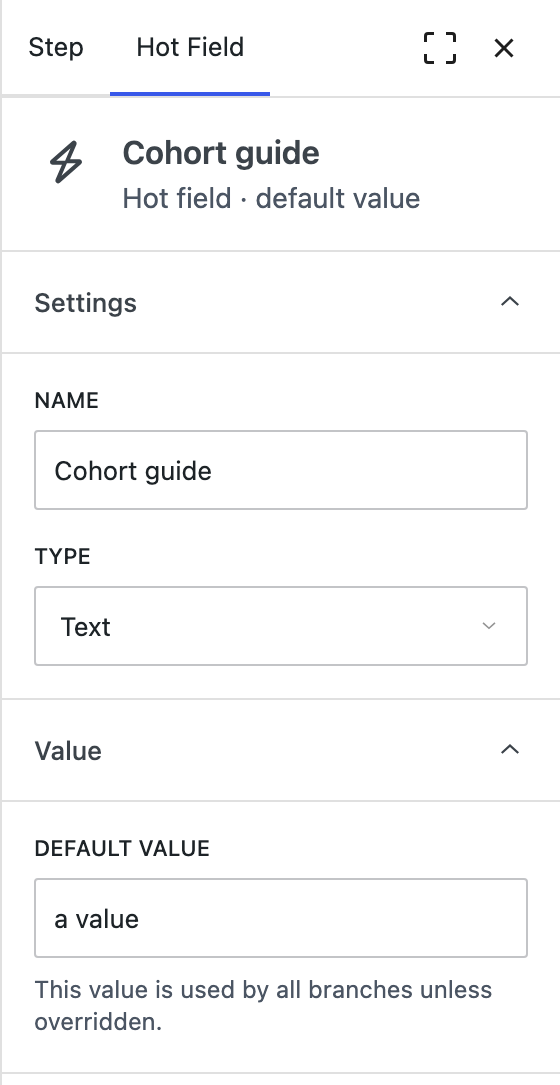
The default value is what the field shows wherever it appears, in every branch that has not overridden it.
The course-wide panel
Editing fields one chip at a time is fine when you are already in the content. To see every hot field in the course at once, open the Hot Fields panel with the bolt button in the toolbar.
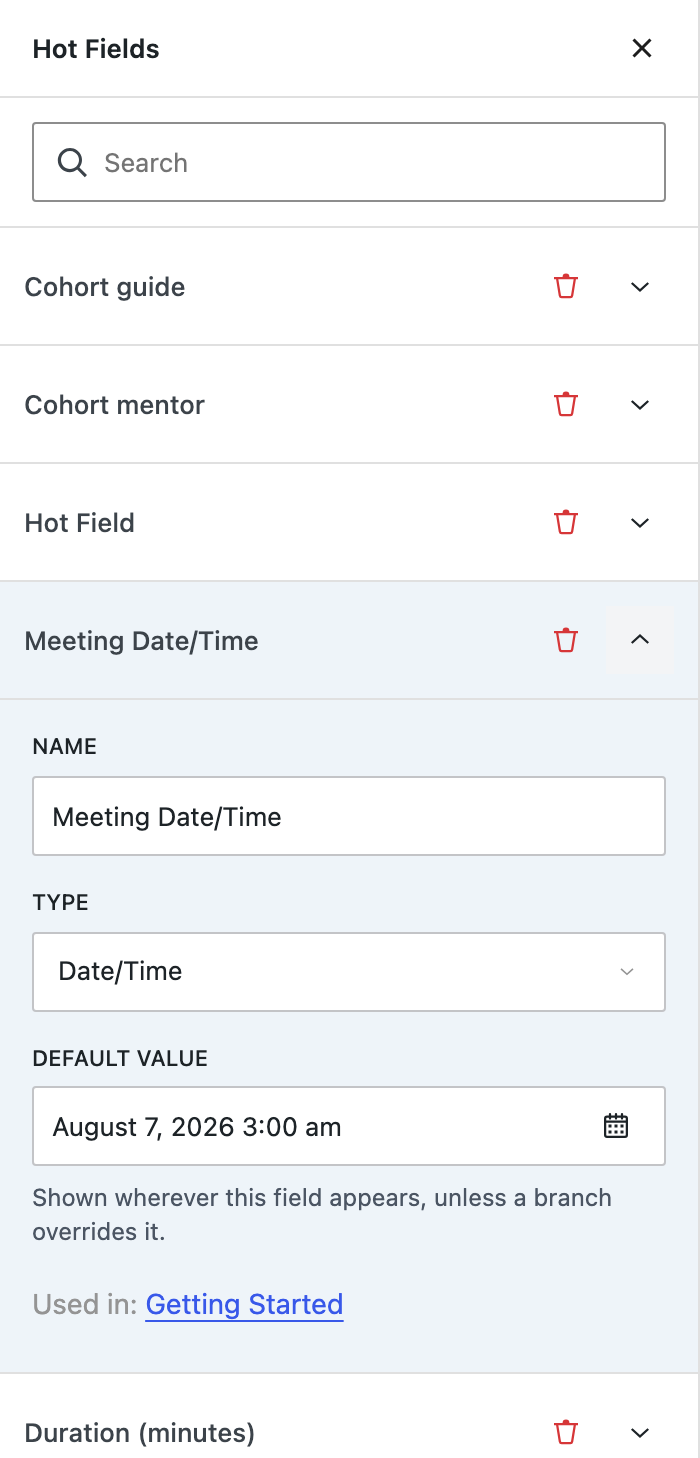
Each field carries the same Name, Type, and Default Value as the inspector, plus two things the inspector cannot show:
- Used in: the steps this field appears in, each a link that takes you there.
- Remove field: deletes the definition. You are asked to confirm, and told how many steps are affected.
A search box filters the list, which helps on a course with a long list of fields.
Removing a hot field deletes the definition, not the words in the content. What was dynamic becomes ordinary text at whatever value it last had, so removal is not a way to clean up the copy.
Hot fields are one of the ways a course branch can be modified. See Branches for overriding their values per branch.