Branches
Tangible LMS allows creation of branches which will be used to override visibility and hot field values. Branches share the same version as main, so changes made within branches will cause the course version to increase.
Branches can be managed from the Branches tab, which allows you to create branches, view branches, and switch the editor between branches.
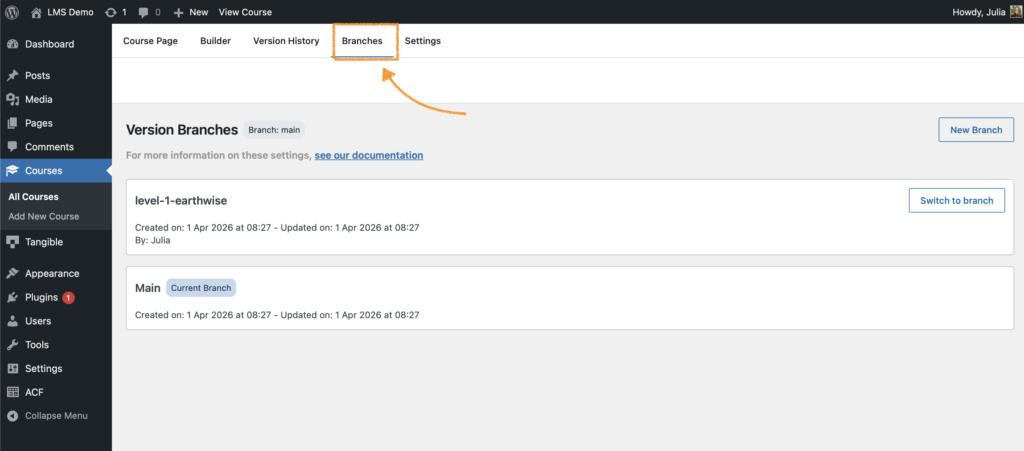
Switching branches
Once you've created branches, you can switch between them using either the provided buttons in the Branches tab, or the  button in the editor.
Creating a branch
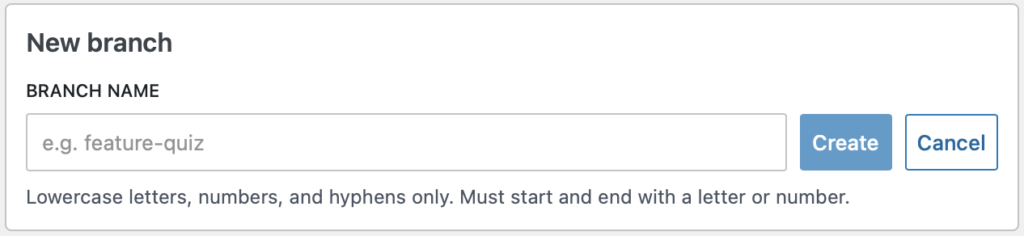
To create a branch, click New Branch in the Branches tab and fill out the provided form.
Branch names must start and end in an alphanumeric character, be lowercase, and may include dashes.
Overriding hot field values
While a branch is selected, hot field values can be overridden for that branch alone. There are two routes to the same thing.
The overrides panel
The bolt button in the toolbar opens the same panel as on main, but on a branch it becomes Hot Field Overrides: every hot field in the course, each as a single value.
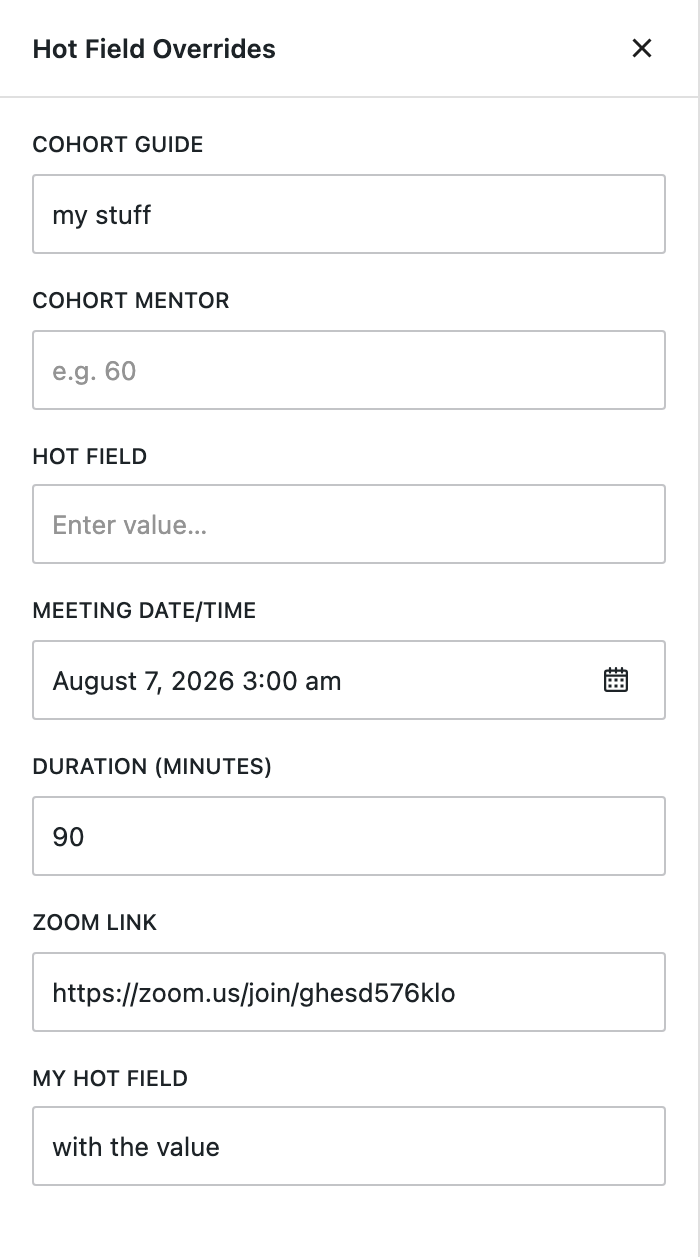
Type a value to override the field for this branch. The reset control beside a field clears the override and puts the field back on the course default.
A field with no override shows the default it is inheriting, so the panel reads as the branch's actual configuration rather than only the parts that differ.
This is the quickest way to set a cohort up, because it is the whole list on one screen rather than a hunt through the content for chips.
Names, types, and default values are absent here. A branch lays values over the main line; it does not redefine it. To rename a field or change its type, switch to main and use the Hot Fields panel.
From the content
The inspector does the same job for one field while you are reading the step it appears in. Click the text inside a hot field chip and open the Hot Field tab.
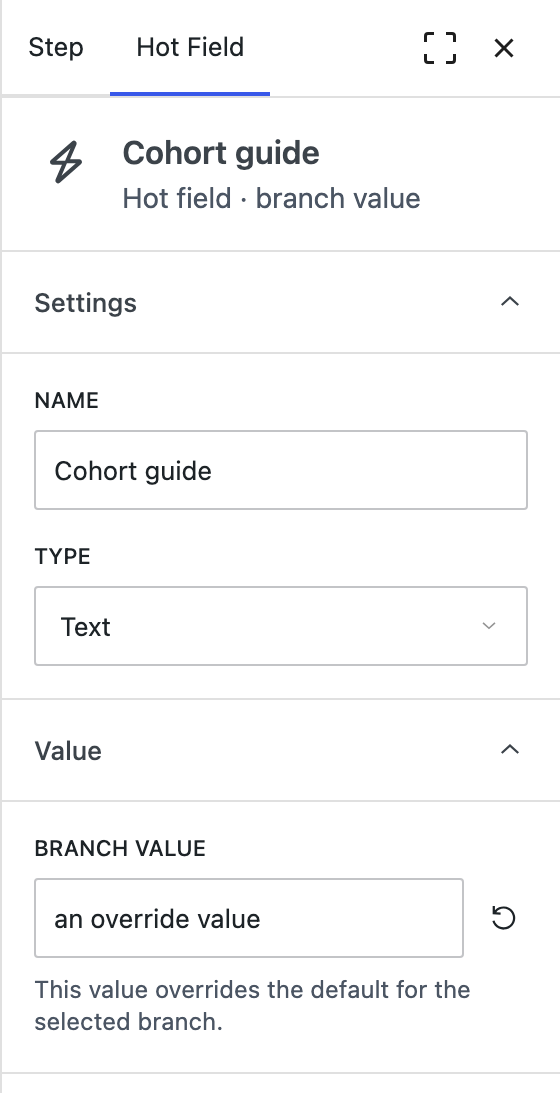
On a branch the Value section reads Branch Value rather than Default Value, and the header beneath the field name says Hot field · branch value, so it is clear which layer you are editing.
The field is pre-filled with the default and tells you which state it is in: Showing the default. Editing it sets a value for this branch only. becomes This value overrides the default for the selected branch. once you have typed something. There is no separate step to create an override first. Editing the value is what creates it.